GitHub README Generator and Visual README Builder
Many developers spend weeks building an amazing project. They write clean code, fix bugs, and finally upload it to GitHub. But then, they realize they have an empty or messy README file. Writing it from scratch is frustrating. You have to remember exact Markdown syntax, search for badge URLs, and manually format tables.
Because writing a README is boring, many developers just write one sentence like "This is my project" and leave it. As a result, when recruiters or other developers look at the project, they do not understand what it does or how to install it. Great projects get ignored simply because the README is bad.
Our GitHub README Generator solves this. It is a completely free, visual tool that lets you build stunning project READMEs in minutes without writing a single line of Markdown code.
What Is This README Builder?
This README Builder is an interactive drag-and-drop editor. Instead of typing raw code, you simply click on pre-made sections like "Installation" or "API Reference" and type your text. The tool automatically generates clean, perfectly formatted Markdown in the background.
It is designed for developers who want professional, beautiful documentation for their open-source projects, portfolios, or enterprise applications, but do not want to waste hours formatting text. Our tool gives you the perfect balance. It provides professional, pre-made templates so you do not have to write code, but it lets you manually type your own information so your project remains authentic.
How to Use the README Builder
Creating your perfect file takes just five simple steps:
1. Choose a Template
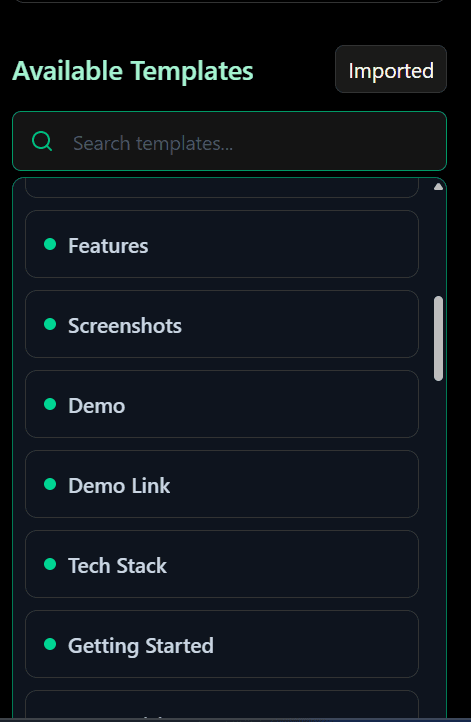
Start by picking one of our pre-built project templates from the sidebar, or start from a blank canvas. When you open our builder, you will see a large list of templates based on the best open-source projects in the world.
2. Add Sections
Click any section in the sidebar, like "Features," "Screenshots," or "Contributing Guidelines," to instantly add it to your project. You can drag and drop these templates up or down to change the order of your sections.
3. Edit Content
Click into any text box in the editor panel and type your project details. You just click on the text box and type in your own project details. Use our built-in buttons to insert badges, file trees, or social links instantly.
4. Preview README
Look at the right side of your screen. The Live Preview panel shows exactly how your file will look on GitHub, updating instantly as you type. Never guess what your Markdown will look like again.
5. Export Markdown
Once you are happy, click download to save the raw README.md file to your computer, copy the code to your clipboard, or commit it directly to your GitHub repository.
README Builder Features
Our editor is packed with special tools to make formatting easy and make your repository stand out to recruiters and other developers.
1. Drag and Drop Editor
Easily rearrange the sections of your documentation by simply clicking and dragging them up or down the page without breaking any Markdown formatting.
2. Live Preview
Because you can see the result instantly, you will never have to upload a broken Markdown file again. See a 100% accurate GitHub-styled preview in real time.
3. File Tree Generator
If you want to show how your folders are organized, click the Insert File Tree button. Alternatively, you can try our standalone GitHub File Tree Visualizer. Just paste your GitHub repository URL, and our tool will automatically scan your code and generate a visual folder tree. No manual typing required.
4. Badge Generator
Want to show a colorful badge for "Next.js" or "MIT License"? Quickly add colorful shields for frameworks, licenses, or build statuses with one click. It drops right into your editor. You can also generate custom badges using our dedicated Badges Generator.
5. Social Icons
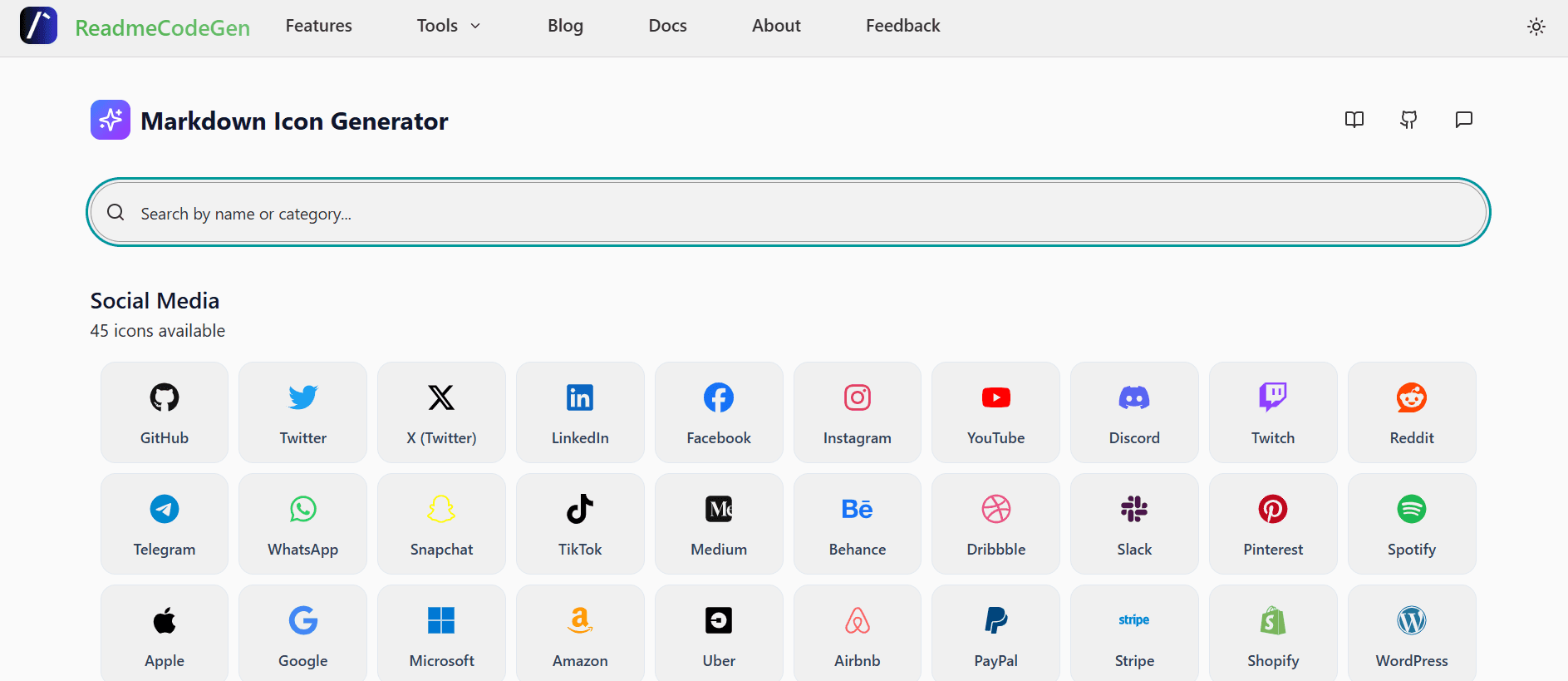
Easily add clickable logos linking to your Twitter, LinkedIn, portfolio, or email so people can easily contact you and follow your work.
6. Import Existing README
Have an old README? You can upload a .md file from your computer or paste a GitHub URL to load an old project into the visual editor and fix it up.
7. AI README Generation
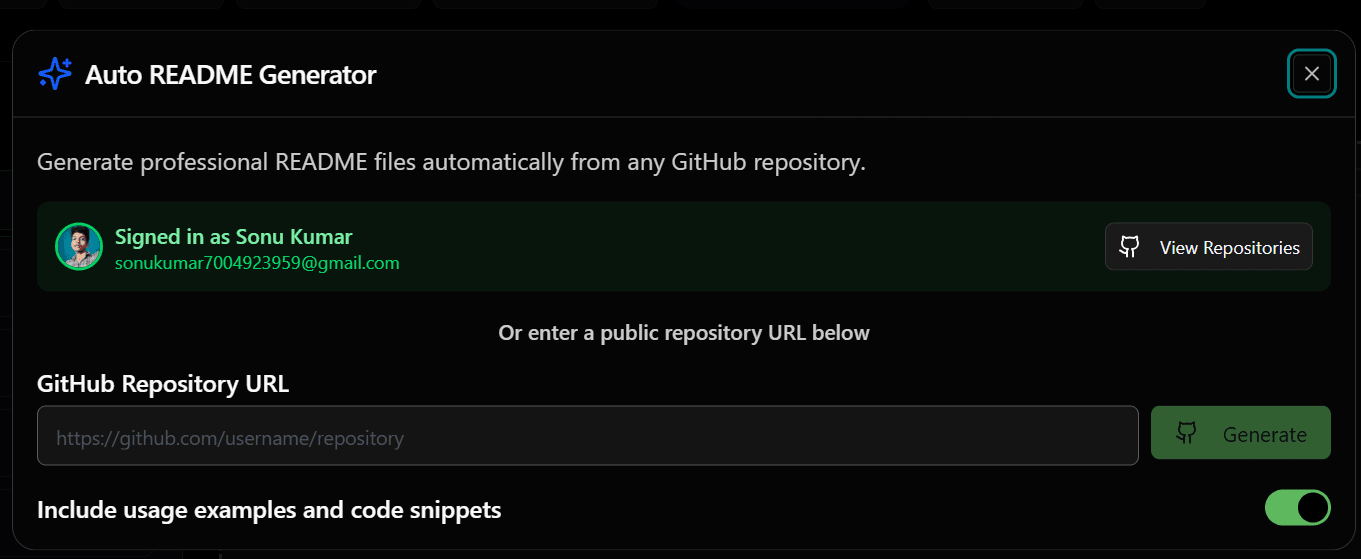
Short on time? Paste your public repository URL and let our standalone AI README Generator read your codebase to auto-generate a complete draft for you instantly.
8. AI Content Enhancement
If you are struggling to write good sentences, type a basic idea and click our AI Enhancement button. Our AI will rewrite your sentence to make it sound professional while keeping your original meaning intact.
9. Save and Manage Projects
You can save your work directly in your browser. When you come back tomorrow, you can load your saved project from the management menu and continue editing exactly where you left off.
10. GitHub Integration
Log in with GitHub to securely commit your finished Markdown directly to your repository without ever leaving the browser.
What Actually Needs to Go in a README?
If you go to developer forums like Reddit, you will see many people asking: "What do I actually need to put in my README to make it look professional?" The answer is simple. Your README is the front door to your portfolio. It should quickly answer what the project is, why you built it, and how to run it. Here is exactly what other developers and recruiters want to see:
Project Description
Your first two sentences must explain what the app does. Write something like: "A weather dashboard built with Next.js that shows real-time forecasts using the OpenWeather API."
Installation
Do not assume the user knows how to start your app. Give them the exact terminal commands they need to type to start your app (like npm install and npm run dev).
Usage
Examples of how to use the app after it is installed. If they need to add an API key in an .env file, show them an exact example of what that file should look like.
Tech Stack
List the programming languages and frameworks you used. Mention if you used React, Node.js, Python, or TailwindCSS. A list of badges showing this is the best way to do it.
License
Always include a license (like MIT or GPL) so others know if they are legally allowed to use your code.
How to Add Images and GIFs
The number one piece of advice developers give for a good README is to include pictures. Text is boring. If you build a web application, people want to see what it looks like before they download it. Adding a GIF (a short, repeating video) is the best way to show how your app works. You can record your screen using free tools like OBS Studio or Loom.
To add an image easily, you do not even need to write code. You can simply go to the "Issues" tab on your GitHub repository, drag and drop your image file into the text box, and GitHub will create a web link for your image. You can then copy that link and put it in our README editor.
Why Purely AI Generated READMEs Can Hurt Your Portfolio
Recruiters and senior developers complain that they can easily spot a project that has a purely AI-generated README. It often uses generic, robotic language. We recommend using our AI to generate a draft, but always manually checking the installation steps and writing the project description in your own words.
README Templates for Popular Projects
We provide specialized templates in the sidebar tailored to the most popular frameworks:
React README
Includes standard Create React App or Vite setup commands, component folder structures, and standard testing scripts.
Next.js README
Built for App Router projects, featuring Vercel deployment instructions, environment setup, and TailwindCSS configuration details.
Node.js README
Focused on backend API endpoints, Express server setup, database connection instructions, and environment variable requirements.
Python README
Perfect for data science or Django projects, including pip requirements, virtual environment setup, and script execution examples.
README Examples
Not sure where to start? Check out what other developers build with our tool:
Portfolio Project README
A highly visual file focusing on screenshots, live demo link buttons, and tech stack badges to impress recruiters.
API Project README
A technical document focusing heavily on authentication instructions, endpoint tables, and JSON response examples.
SaaS Project README
A comprehensive guide featuring contribution guidelines, local docker setup, and architecture diagrams for open-source contributors.
Frequently Asked Questions
- Read our full guide here