Markdown to PDF Converter
Sample PDF Document
Introduction
Welcome to the Markdown to PDF converter!
Features
- ✅ Convert Markdown to beautiful PDFs
- ✅ Real-time preview
- ✅ Custom styling
- ✅ Support for tables, lists, and formatting
Sample Table
| Name | Age | City |
|---|---|---|
| John | 30 | New York |
| Jane | 25 | London |
Code Example
console.log("Hello, World!");
This is a blockquote example
Bold text and italic text work perfectly!
Why Convert Markdown Files to PDF?
Markdown is a standard way to format text. Developers use it for writing code documentation, README files, and technical notes.
Most people expect a PDF, not a .md file. A PDF opens on almost any device without needing a Markdown editor. If someone opens a raw Markdown file in a basic text editor, they see raw symbols like hashtags and asterisks instead of proper headings and bold text.
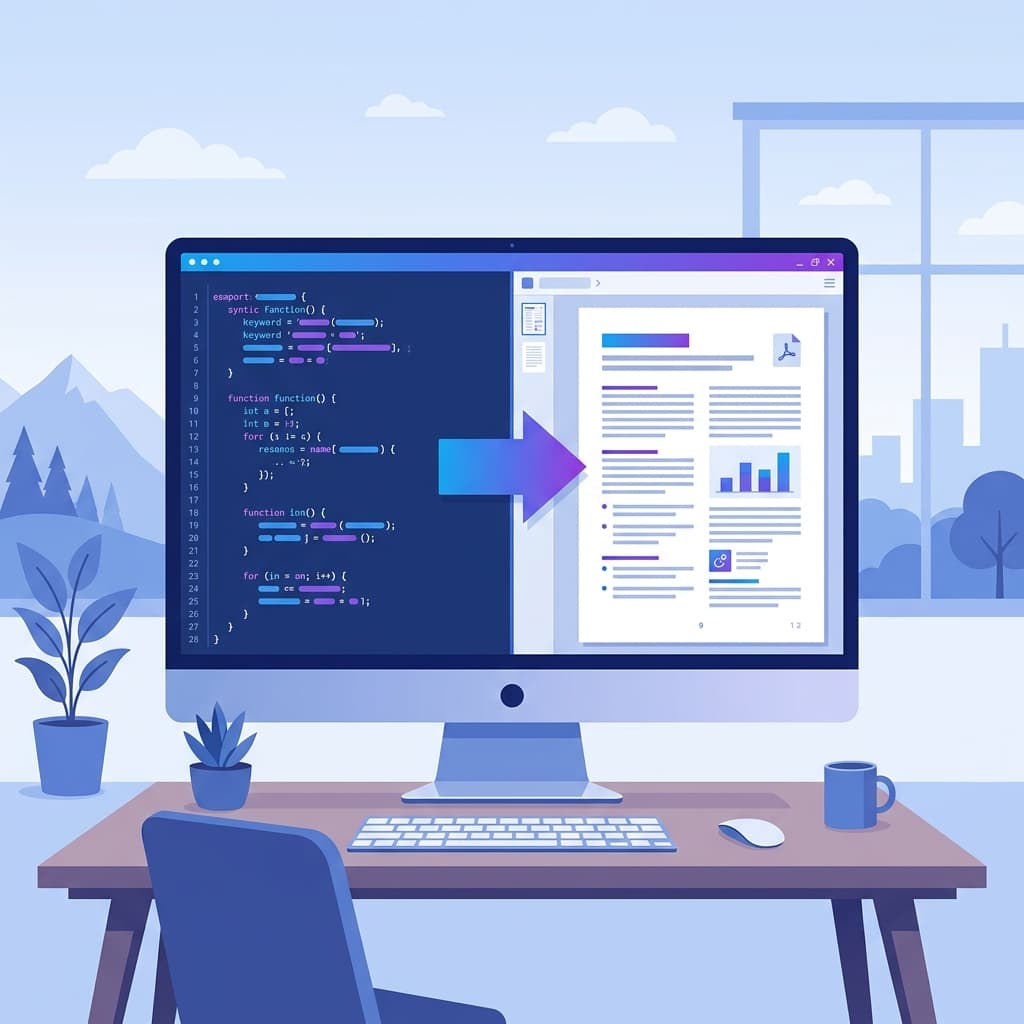
A PDF keeps the formatting exactly as you created it. The file opens the same way on Windows, macOS, Linux, phones, and tablets. Your headings, lists, and code blocks stay intact.
What is Markdown?
Markdown is a lightweight markup language. You format text using standard characters instead of clicking buttons in a menu. You use asterisks for bold text, hashtags for headings, and backticks for code blocks.
Because it is plain text, Markdown is portable. It works on any operating system and stores cleanly in version control systems like Git. This is why platforms like GitHub, Reddit, and Stack Overflow use it natively.
The Problem with Copy and Paste
Copying Markdown text and pasting it into Microsoft Word or Google Docs breaks the formatting.
Tables lose their columns. Code blocks lose their background colors. You spend extra time fixing the layout manually to save the file as a PDF.
This online converter reads Markdown syntax directly. It generates a PDF with the original formatting intact.
Alternative Conversion Methods
Using an online converter is not the only way to get a PDF. Here are other methods developers use, along with their trade-offs:
- Command-line tools (Pandoc): Powerful, but requires installing dependencies and typing terminal commands. Hard to share with non-developers.
- Browser print-to-PDF: You open a Markdown preview in your browser and use the print dialog to save it as a PDF. The formatting often breaks across page boundaries.
- Editor extensions (VS Code): Many IDEs have plugins that export Markdown to PDF. This works well if you already have the IDE and the specific plugin installed and configured correctly.
How to Use This Markdown to PDF Converter
You do not need to install command-line tools. Follow these steps to get your PDF:
Add Your Markdown Content
Use the editor on the left side of the screen. You have three ways to add text:
- Type Markdown directly into the editor.
- Click the upload button to select a .md file from your computer.
- Click "Import from GitHub" and paste a repository link to fetch the README file.
Check the Live Preview
The right side of the screen updates instantly. This preview panel shows exactly how the final PDF document looks. Fix layout mistakes in the editor on the left to see the preview update in real-time.
Download Your PDF
Click the Download PDF button. The tool generates a clean PDF file and saves it to your computer. Headings, tables, and code snippets format correctly.
Formatting Your Markdown
Format your Markdown clearly to get the best results on the PDF export. Here are a few tips:
Spacing Rules
Use short paragraphs: Reading long blocks of text on a PDF page is difficult. Press the enter key twice to create space between paragraphs. This makes the document easier to scan.
Heading Structure
Use correct heading tags: Use hashtags for headings.
Example of Headings
Use ## for main sections and ### for sub-sections. The converter uses these tags to calculate font size and spacing for the PDF.
Code Snippets
Label your code blocks: Add a code block using three backticks and write the name of the programming language next to the first backticks (for example, ```python). This applies the correct colors to the code.
Common Mistakes When Exporting to PDF
Avoid these common errors when converting your Markdown files:
- Ignoring page breaks: A PDF has strict page dimensions. Huge tables or extremely wide images might get cut off or push text off the screen.
- Forgetting language tags: If you do not specify a language on your code blocks, the PDF generator cannot apply syntax highlighting. The code prints as plain text.
- Using local image paths: If your Markdown file references an image saved on your local hard drive, the online converter cannot see it. Use hosted image URLs instead.
When Do You Need a Markdown to PDF Converter?
Markdown files are easy to write, but PDF files are easier to share. Here are a few common situations where exporting to PDF makes sense.
- Sharing Project Documentation: Developers write manuals in Markdown and share them as PDFs so non-technical clients can read them.
- Creating Resumes: Tech workers write resumes in Markdown and export them to PDF for job board uploads.
- Submitting Assignments: Students write coding assignments in Markdown and convert them to PDF to submit.
- Printing Documents: Converting a README file to PDF ensures margins and pages align correctly for printing.
Limitations of the PDF Format
While PDFs are great for sharing, they are not perfect for everything.
PDFs are static. If you update the code in your GitHub repository, the PDF does not update automatically. You have to generate and send a new file. Also, copying code out of a PDF can sometimes introduce spacing issues or hidden characters, making it annoying for other developers to test your code.
If the reader needs to run the code, send them the repository link. If they just need to read the documentation, send the PDF.
Other Helpful Tools
Use the Markdown Editor Online to write and format text in a distraction-free environment.
Use the GitHub README Generator. Create a README by filling in the project details. When it is ready, export it as Markdown and convert it to PDF here.
Frequently Asked Questions
Some faq about readme to pdf generation
Related Tools
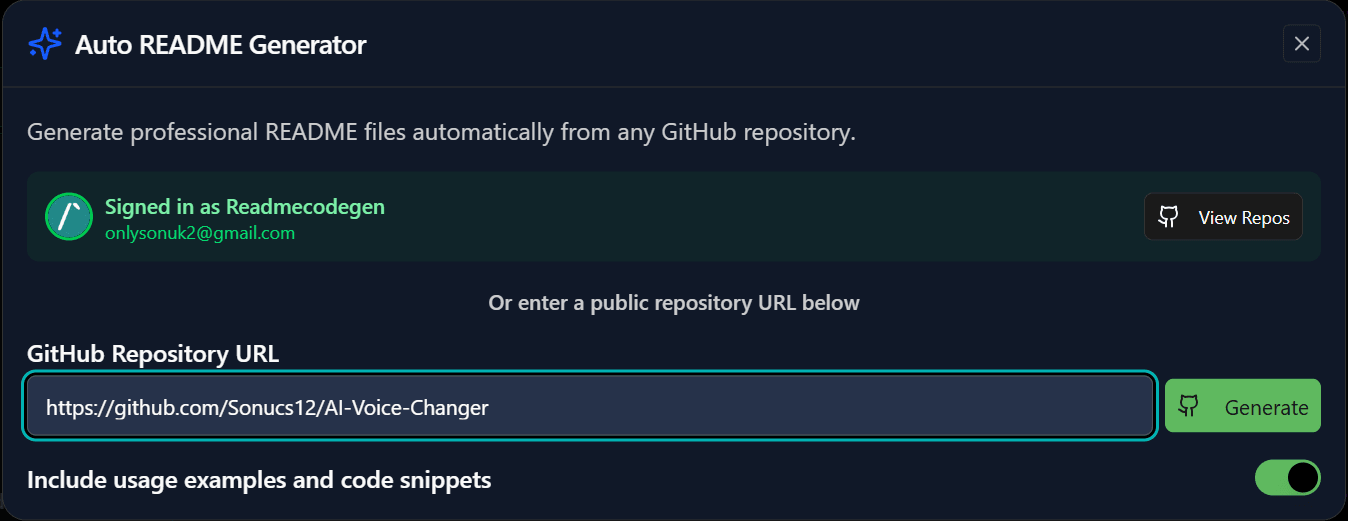
Repository README Builder
Interactive drag-and-drop builder to create comprehensive README files for your repositories.
Markdown Editor Online
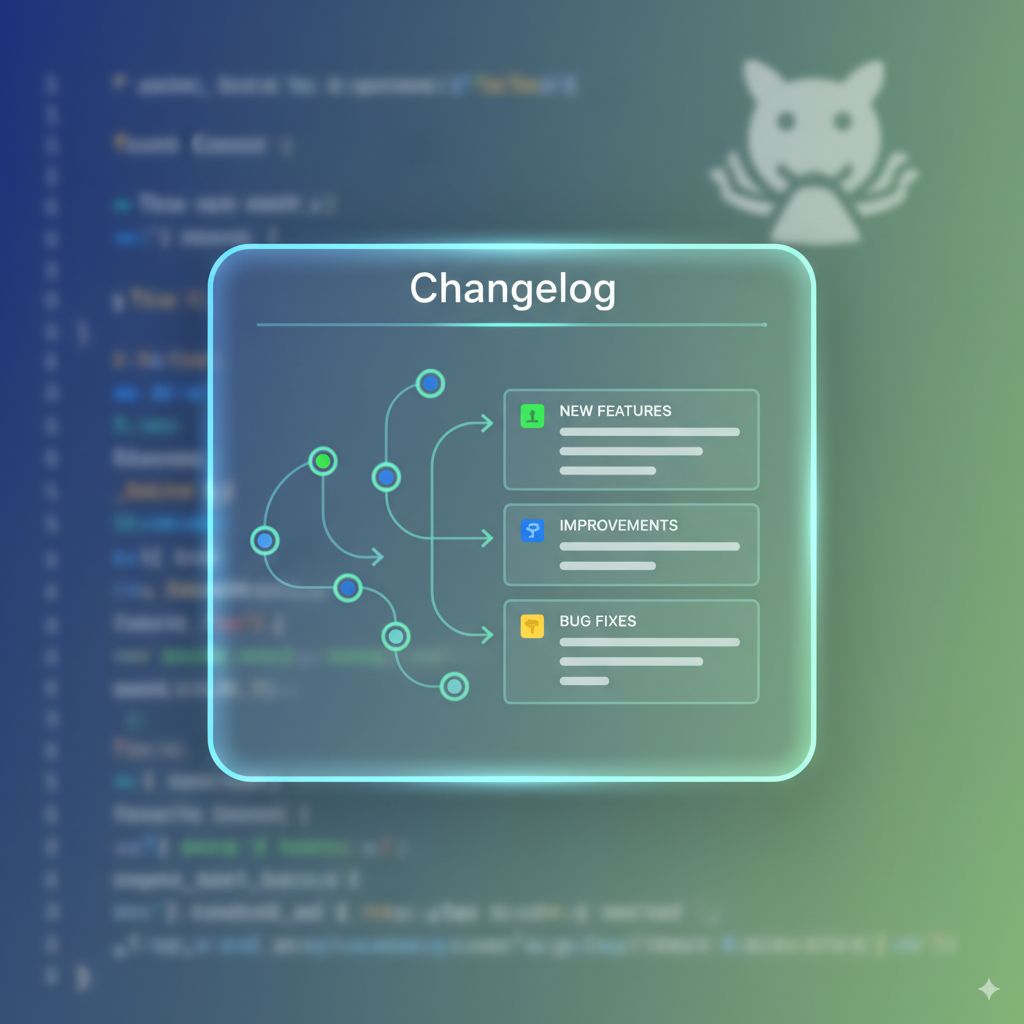
Changelog File Generator
Generate structured CHANGELOG.md files to keep track of your project versions and updates.
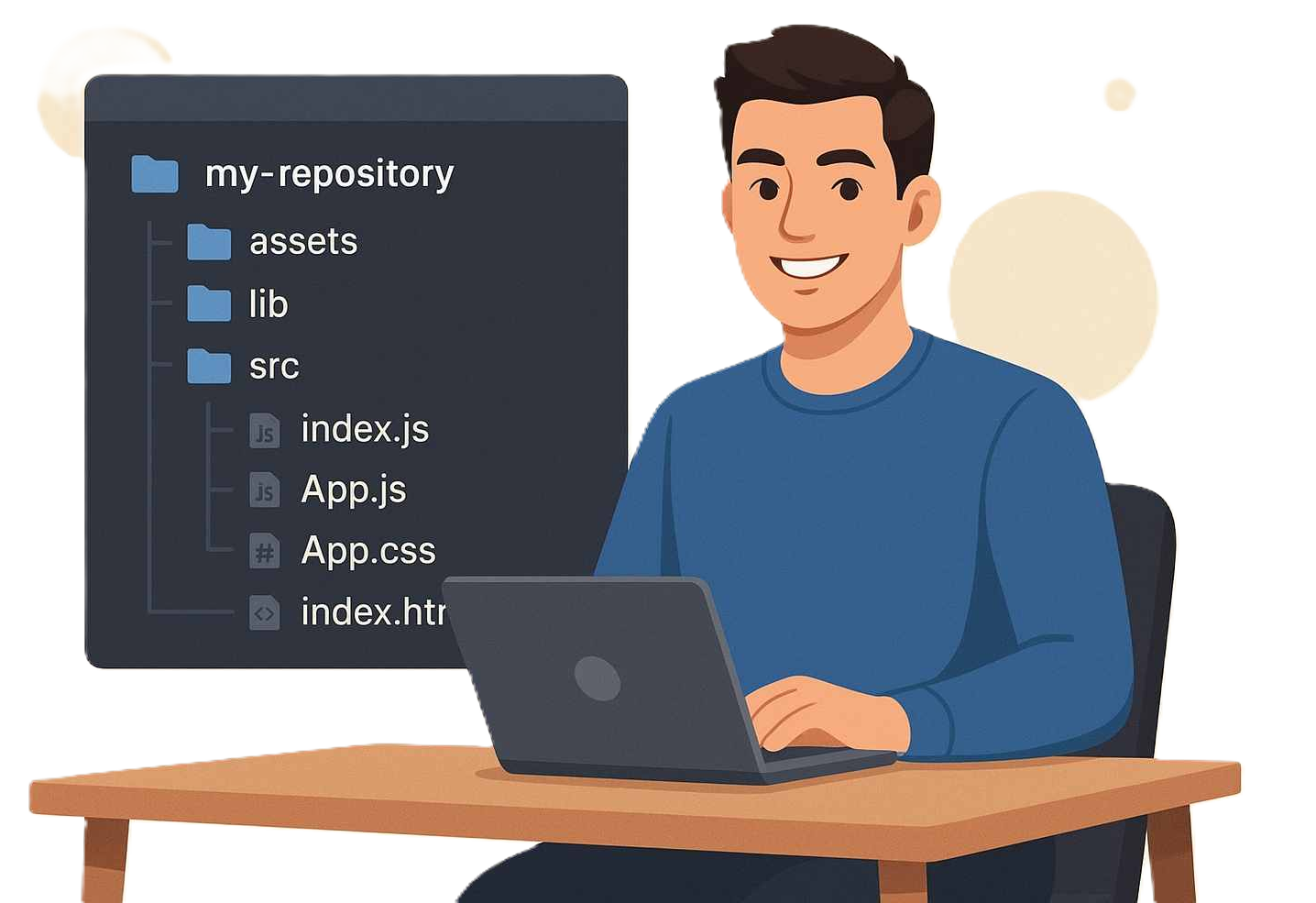
File Tree Generator
Easily generate ASCII file tree structures of your project directories for documentation.