GitHub File Tree Generator Tools
Seven free tools to create folder structures, generate GitHub file trees, and build markdown directory diagrams for README files and documentation. Pick the tool that matches what you need to do.
Create Folder Structure Online
Plan your project before writing a single line of code. Type a folder structure, generate it instantly, and download as a zip with all folders and files created inside.
New projects · Architecture planning · Team templates

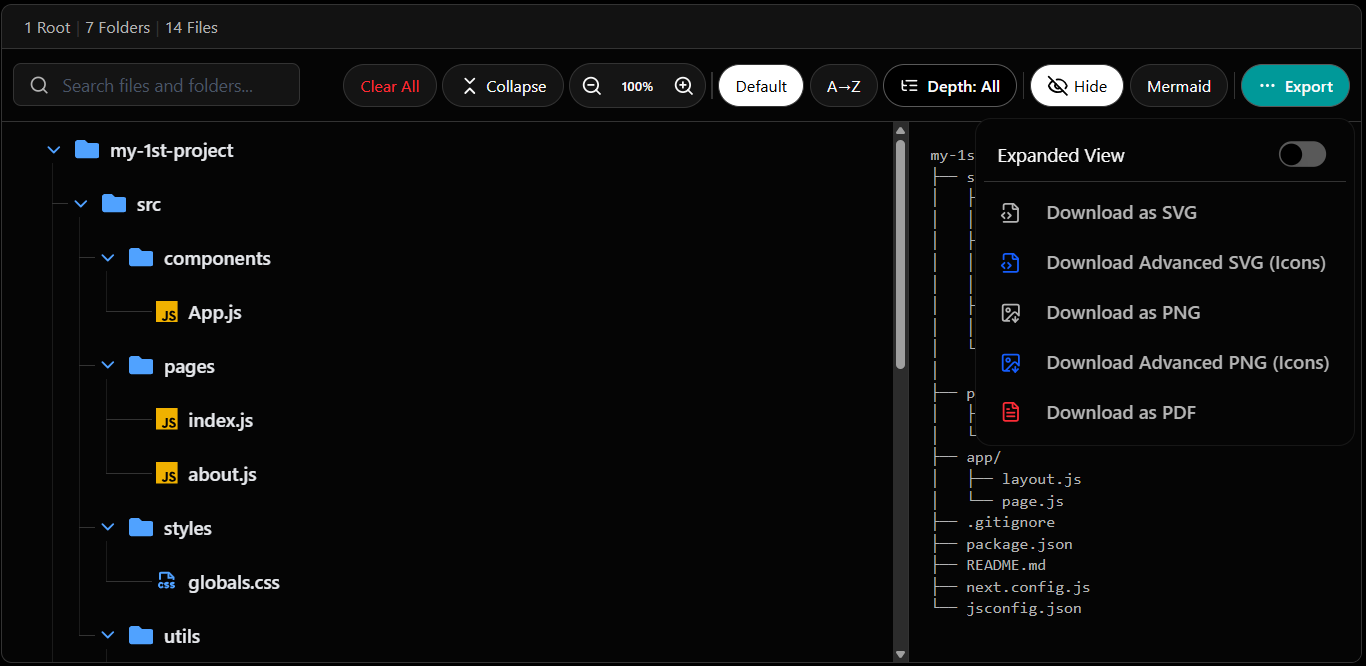
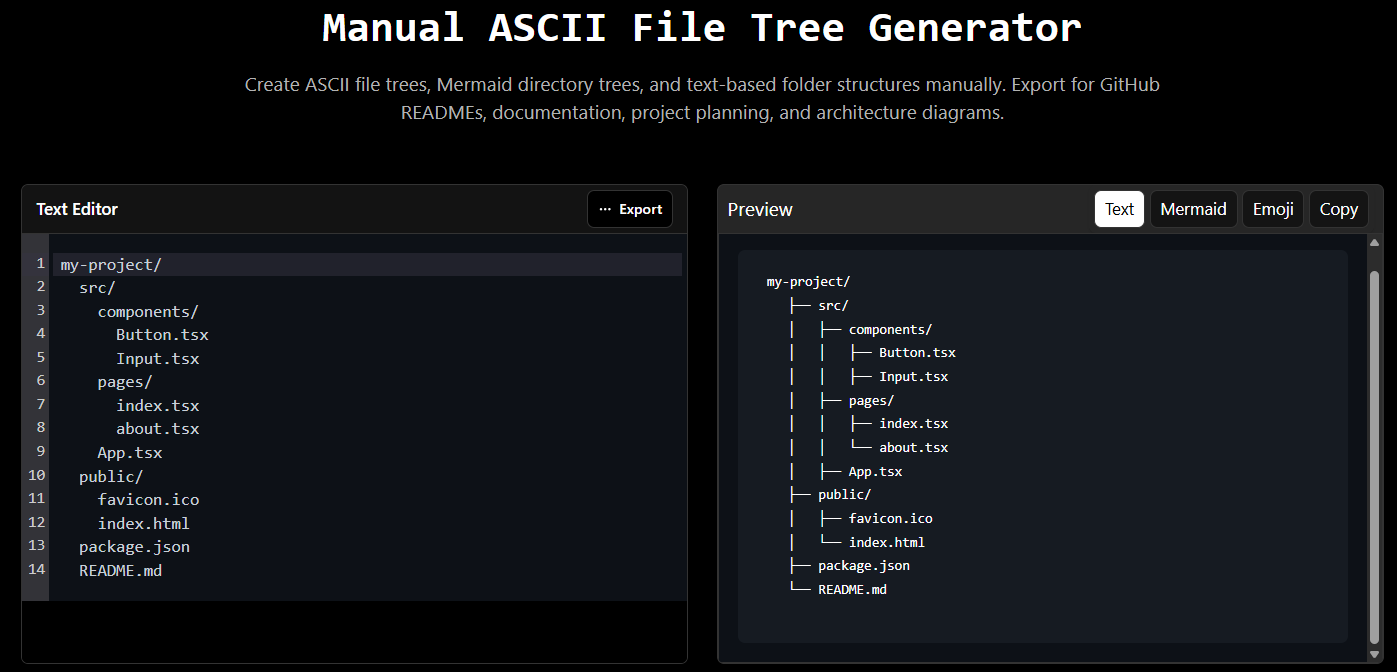
Manual ASCII File Tree Generator
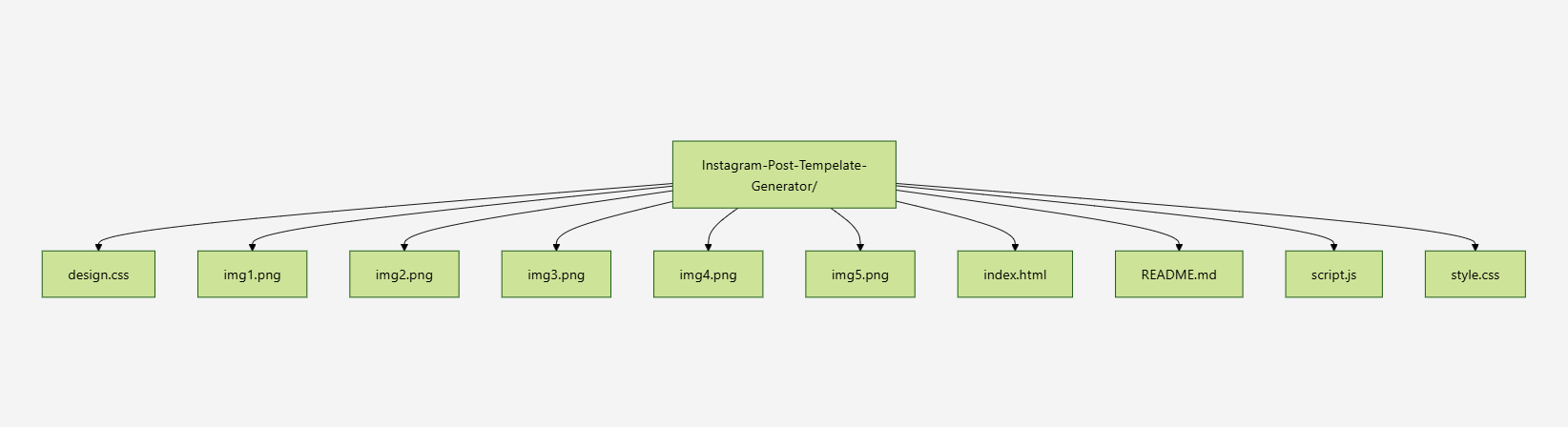
Type any folder structure and get an ASCII file tree, Mermaid directory diagram, or emoji tree instantly. The fastest way to add a folder structure to a GitHub README or markdown documentation.
README.md trees · Markdown folder structures · Mermaid diagrams
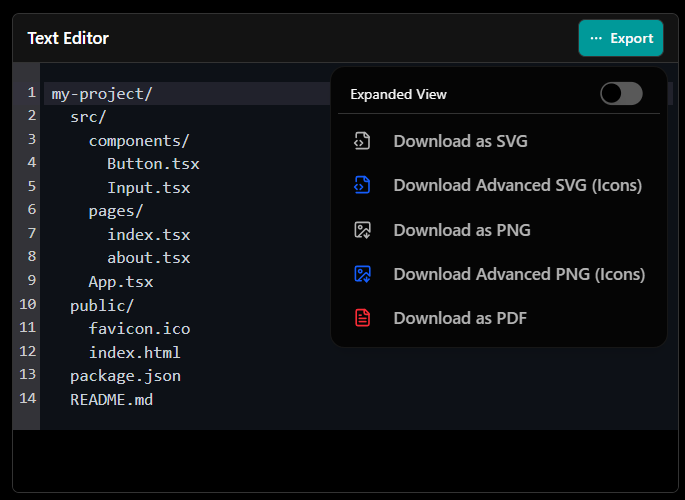
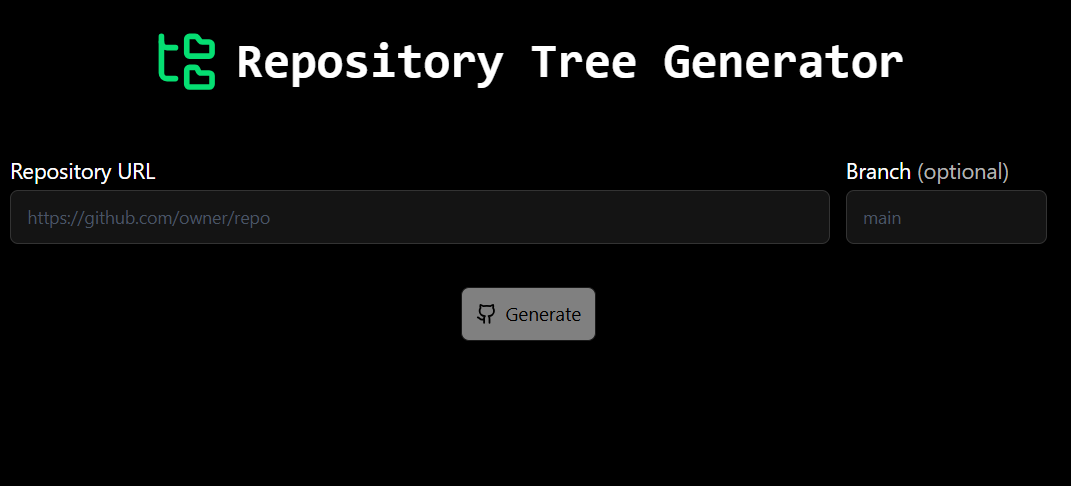
GitHub Project Tree Generator
Paste any public GitHub repository URL and generate a complete file tree. Copy the ASCII or text output directly into your README file or project documentation.
GitHub README trees · Repo documentation · Project structure
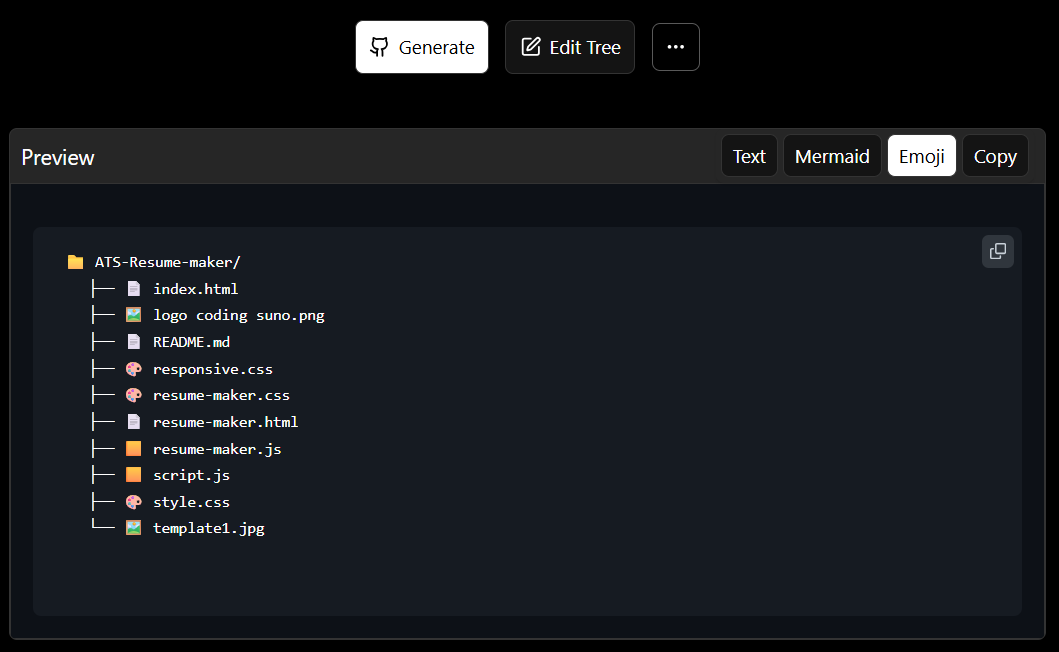
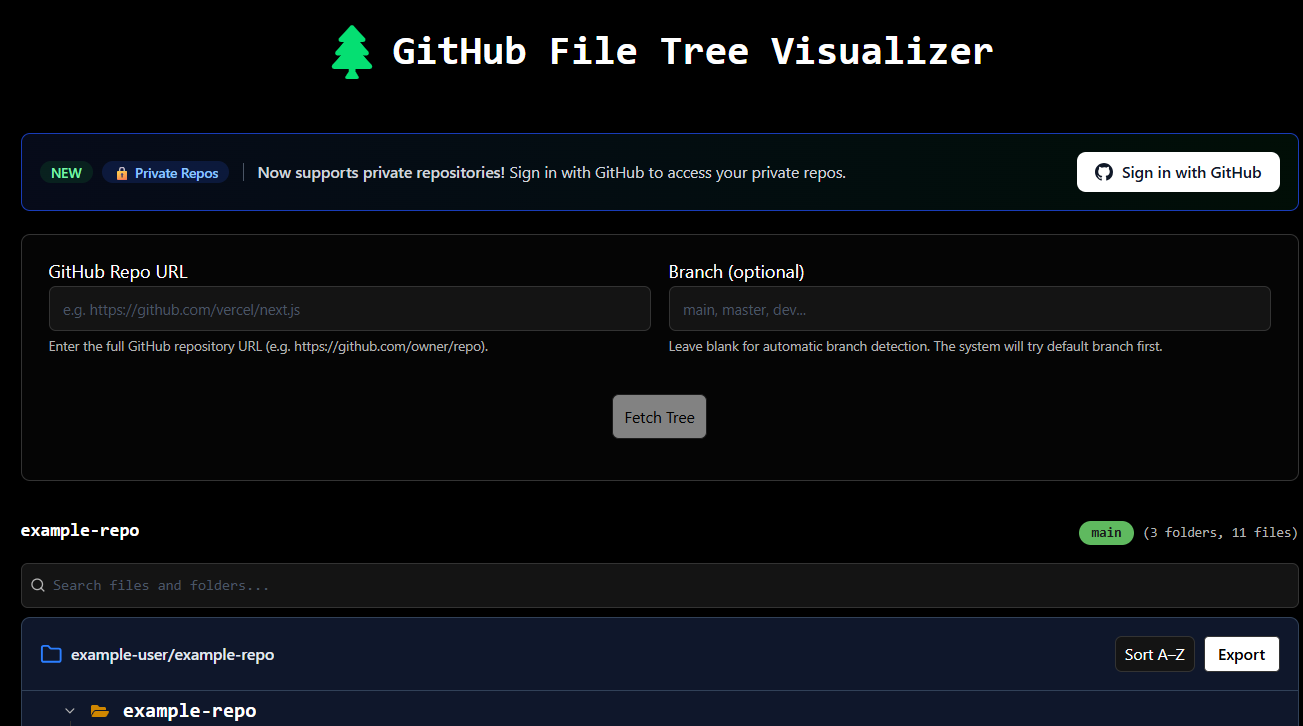
GitHub File Tree Visualizer
Visualize any GitHub repository as an interactive file tree. Browse all files and folders without cloning. Navigate directly to any file. Works with React, Next.js, Python, and any other project.
Repo exploration · Code review · File navigation

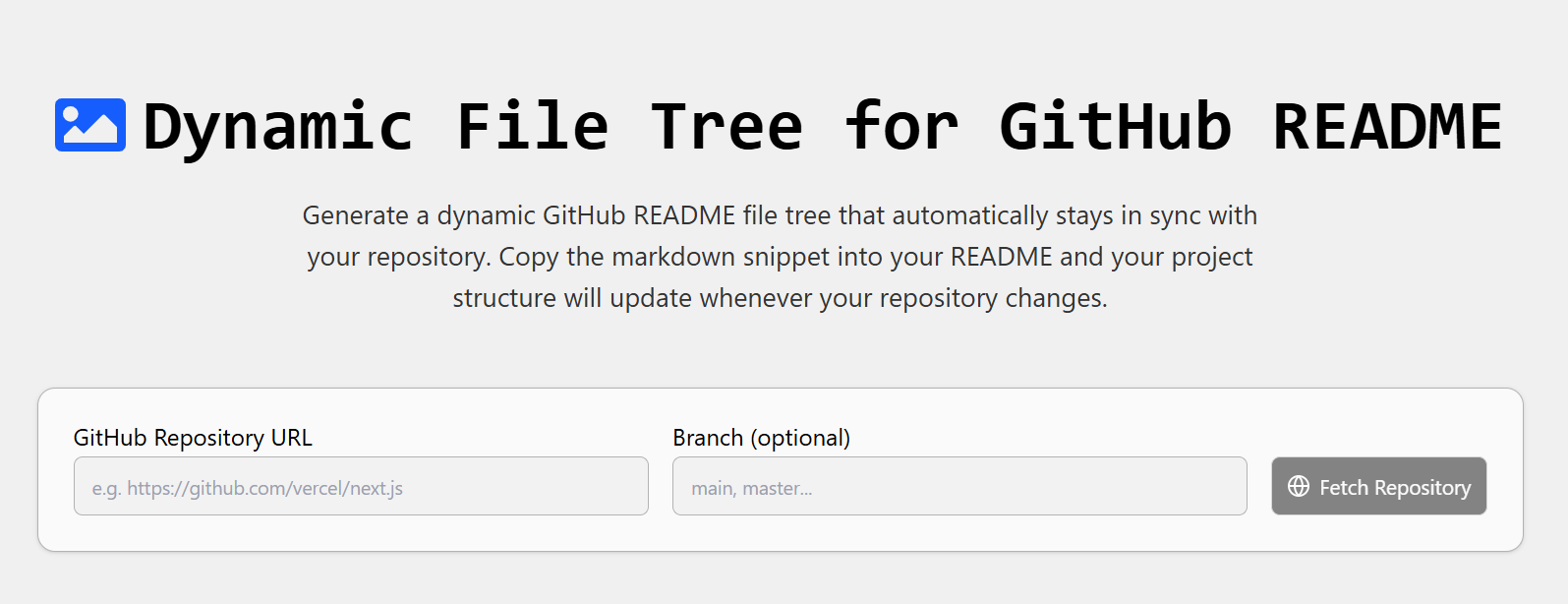
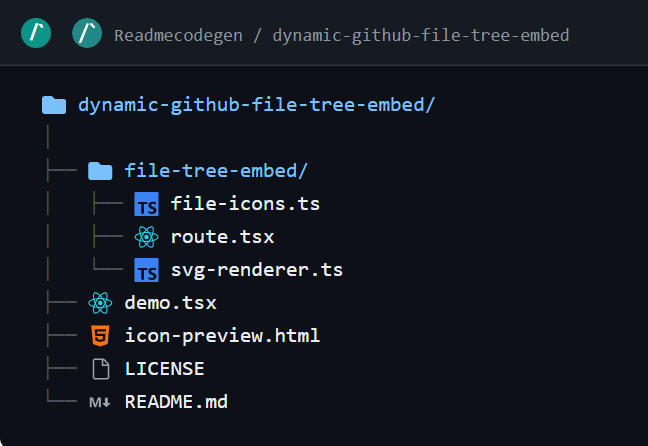
Dynamic GitHub README File Tree
Generate an auto-updating GitHub README file tree. Embed a dynamic SVG in your README and keep your repository structure synced automatically.
README badges · Live repository sync · Project overview
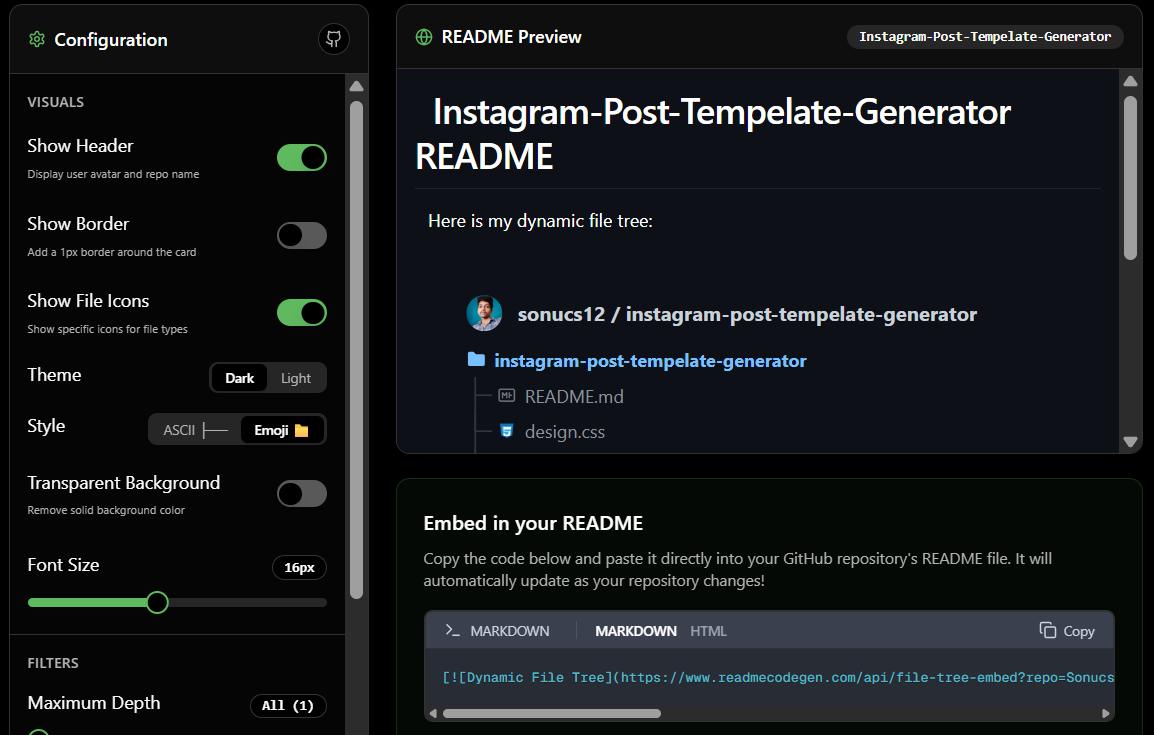
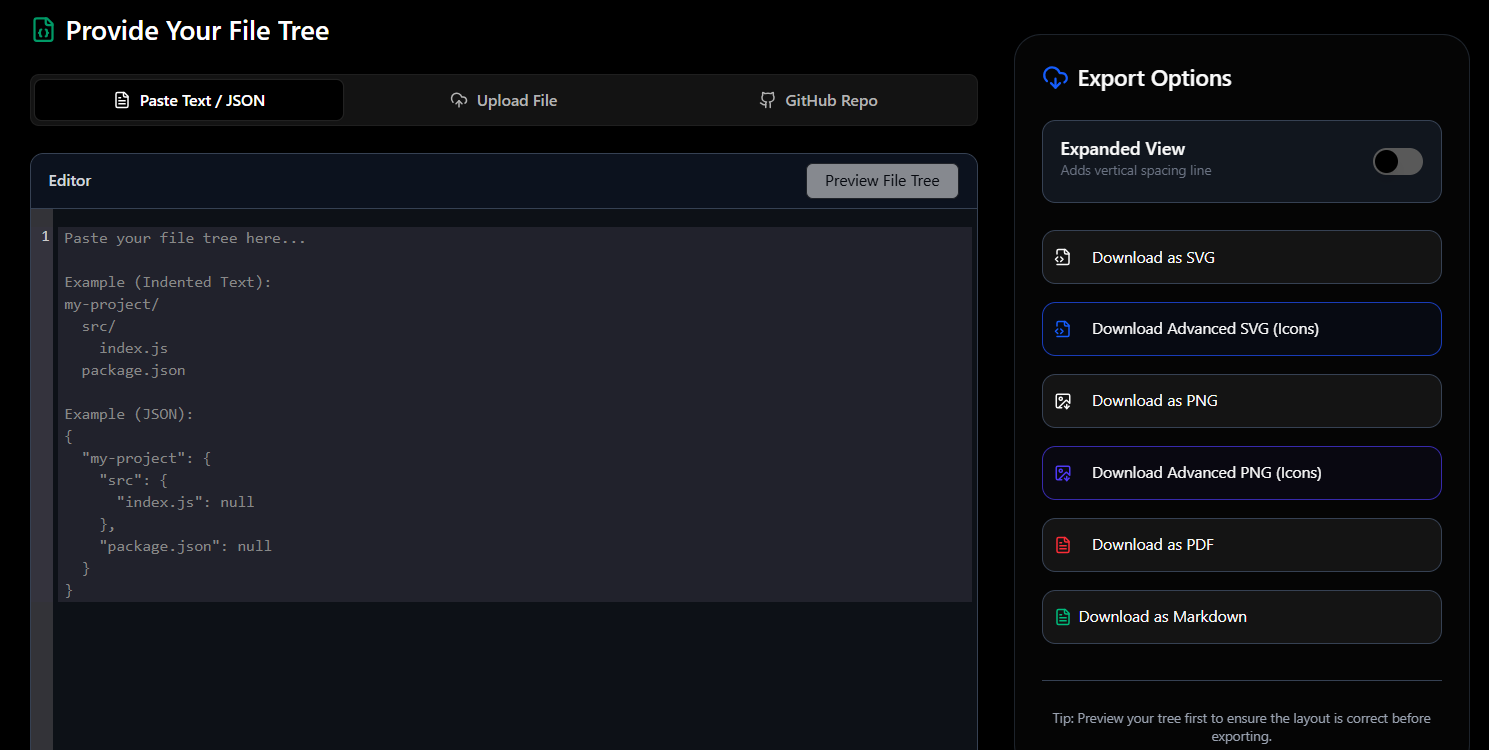
Export File Tree Online
Easily convert and export your file tree diagrams to SVG, PNG, PDF, Markdown, and Mermaid formats. The ultimate free tool for codebase visualization.
Documentation · Presentation · File sharing
Mermaid Diagram Generator & Editor
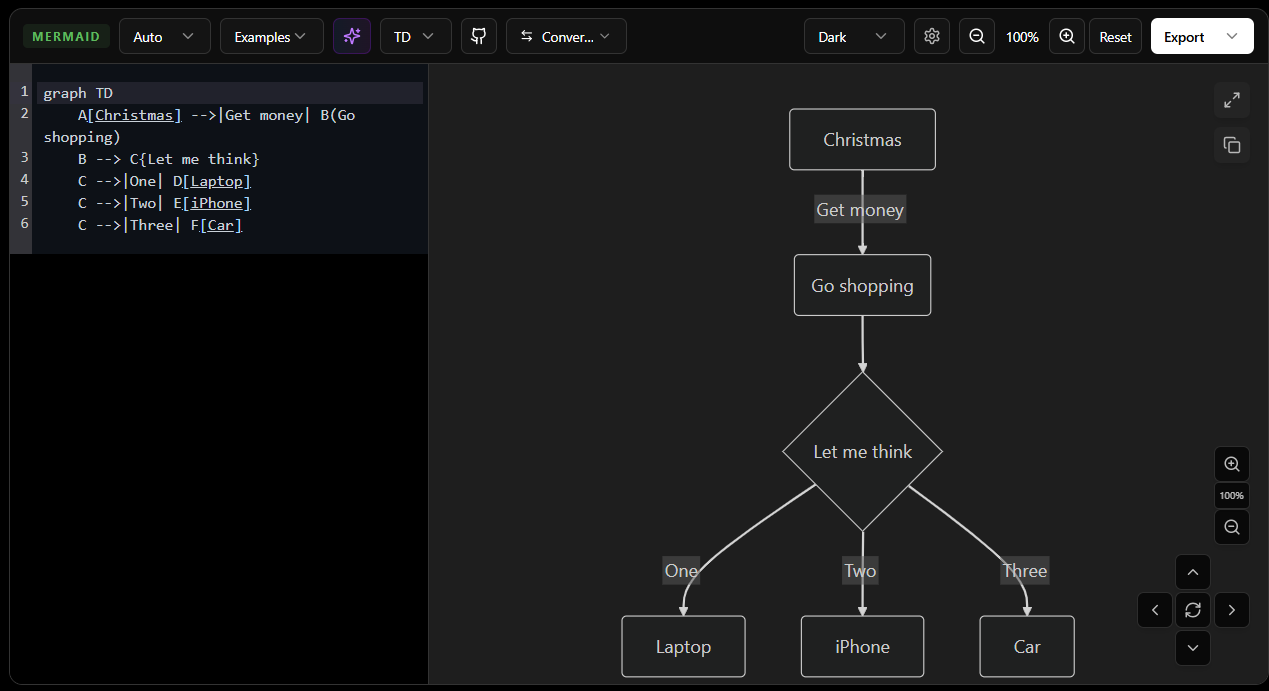
Write Mermaid syntax, see live previews, customize diagram themes, and export SVG or PNG images for GitHub README files and project documentation.
Flowcharts · Sequence diagrams · Architecture
GitHub File Tree and Folder Structure Generator Tools
These seven tools cover every situation where you need to create, generate, or visualize a file tree. Whether you are writing a GitHub README and need a folder structure diagram, exploring a repository without cloning it, or planning a new project from scratch — there is a specific tool here for each of those tasks.
Which Tool Should You Use
If you want to create a folder structure diagram for GitHub from an existing repository, use the GitHub Project Tree Generator. Paste the repo URL and it pulls the full file tree for you to copy into your README.
If you need a markdown folder structure diagram or an ASCII tree for documentation and you want to type it yourself, use the Manual ASCII File Tree Generator. It generates the readme tree structure in Text, Mermaid, or Emoji format instantly as you type.
If you want to visualize a GitHub repository as an interactive tree and navigate its files without cloning, use the GitHub File Tree Visualizer. It works as a github tree visualizer that shows the complete directory structure with file-level navigation.
If you are planning a new project and want to generate the folder structure before writing any code, use the Create Folder Structure Online tool. It creates the actual folders and files as a downloadable zip.
If you are tired of manually updating your project structure and want to keep your file tree in sync automatically, the Dynamic GitHub README File Tree is your best bet. It generates an auto-updating SVG that you can embed directly into your README. Whenever your repository changes, the diagram updates on its own—no extra GitHub Actions or manual scripts required.
When you need to share your project structure outside of GitHub—like in a formal report or a presentation—use the Export File Tree Online tool. It lets you export your file tree diagram as a PDF or PNG image instantly. This is super handy if you want to convert your text-based folder structure into a clean, professional visual or download it as a Mermaid diagram.
Finally, if you need to build flowcharts, sequence diagrams, or architecture charts using code, our Mermaid Diagram Generator features a live preview editor. It's perfect for developers who want to type Mermaid syntax and instantly see the result. Once you are happy with how it looks, you can easily download the diagram as an SVG or PNG to include in your technical documentation.
How Developers Use These Tools for README Files
One of the most common uses across all seven tools is adding a project structure to a README.md. A readme folder structure generator saves time because you do not have to manually type the tree with the correct indentation and characters. You get a clean ASCII directory tree or markdown file tree generator output that pastes directly into a code block.
For how to write project structure in README files, the standard approach is wrapping the ASCII tree output in triple backtick code blocks. GitHub renders it as a fixed-width block showing the full folder hierarchy. The Manual tool and the GitHub Project Tree Generator both produce output formatted this way.
If you need a markdown tree generator output specifically — for Notion, Obsidian, GitBook, or any Mermaid-supported platform — the Manual tool's Mermaid tab gives you a markdown folder structure diagram that those platforms render as a visual graph rather than plain text.
Supported Project Types
These tools work with any project structure — React, Next.js, Node.js, Python, Django, Flask, monorepos, and any other folder layout. The GitHub File Tree Visualizer is particularly useful for exploring large repositories like component libraries, backend APIs, or full-stack applications where you want to understand the github file structure generator output before contributing.