

What Is the Manual File Tree Generator
This tool lets you type a folder and file structure by hand and instantly see it as a formatted tree in the preview panel on the right. You write the structure in the text editor on the left, and the preview updates in real time showing you the Text, Mermaid, or Emoji output as you type.
It is built for situations where you do not have a GitHub repository to connect, or where you want to document a structure that does not exist yet — a planned project layout, a proposed architecture, or a simplified version of a real project for documentation purposes.
When to Use This Tool Instead of the Auto Generators
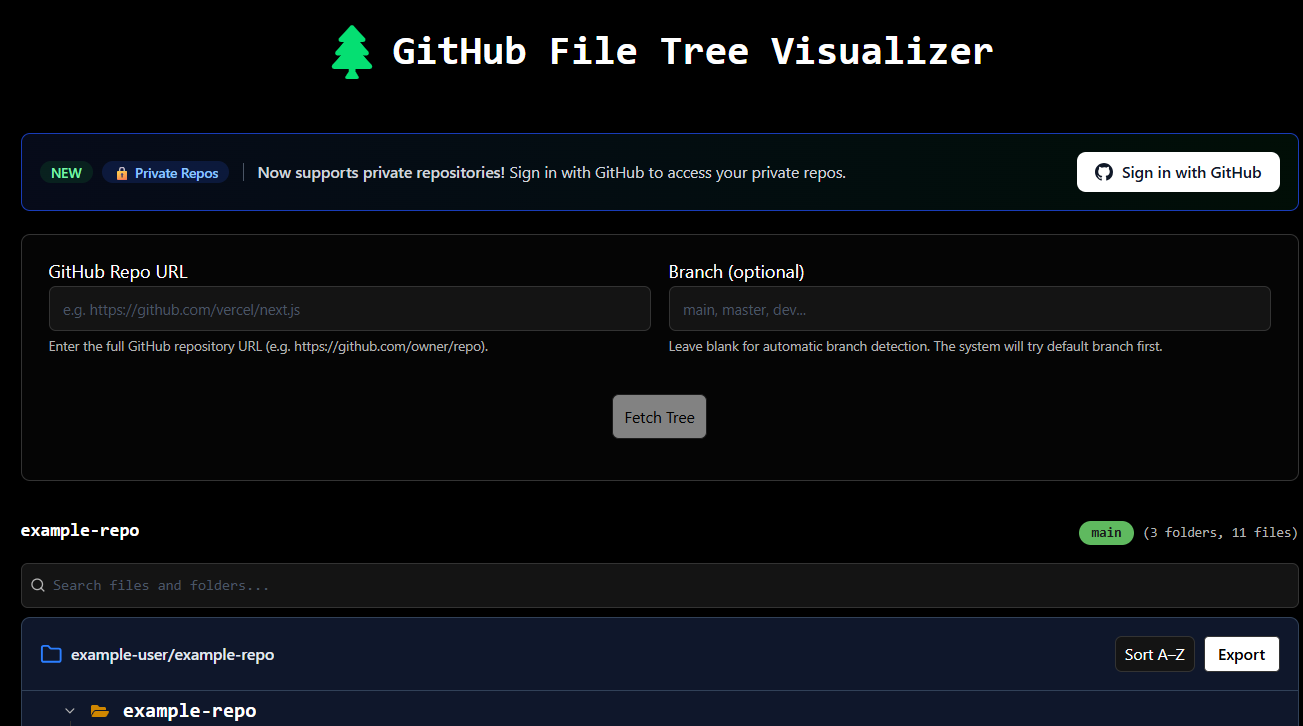
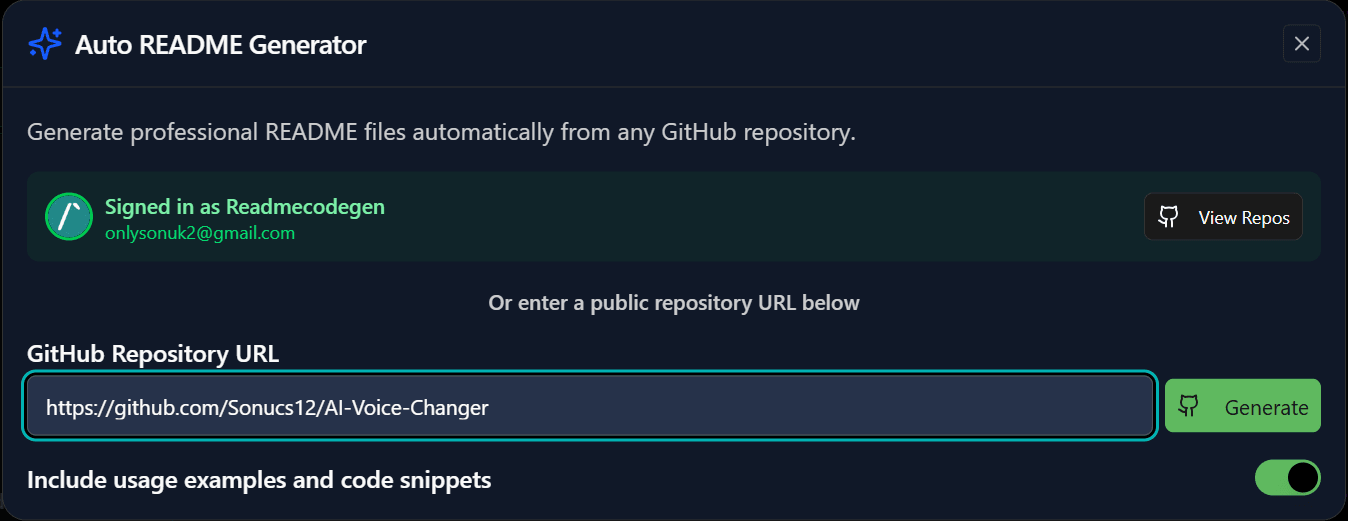
If you have an existing GitHub repository and want to generate a tree from it automatically, the GitHub File Tree Visualizer connects directly to your repo and pulls the real structure. If you want to create a folder structure and actually generate those folders as a zip file, use the Create Folder Structure Online tool. If you need a full project tree from any public GitHub repository, the GitHub Project Tree Generator handles that.
This manual tool is the right choice when:
You are planning a project before writing any code and want to document the intended folder layout. You want to show a simplified or cleaned-up version of a project structure in a README without showing every file. You are writing a tutorial or blog post and need a folder structure example that does not come from a real repo. You are working offline or with a private codebase you cannot connect to a tool.
How to Use the Text Editor
Type your folders and files into the editor on the left side. Each line is one item. Use indentation to nest files inside folders — 2 spaces or 1 tab per level. Add a trailing slash to any folder name so the tool recognizes it as a directory rather than a file.
my-project/
  src/
    components/
      Button.tsx
      Input.tsx
    pages/
      index.tsx
      about.tsx
    App.tsx
  public/
    favicon.ico
    index.html
  package.json
  README.md
The preview on the right updates as you type. You do not need to click anything — the output is always current with what you have written in the editor.
Choosing an Output Format
The preview panel has three tabs at the top: Text, Mermaid, and Emoji. You switch between them depending on where you are going to use the structure.
Text — ASCII File Tree
The Text tab generates an ASCII file tree using characters like ├──, └──, and │ to show the hierarchy. This is the standard format for README files and technical documentation because it works in any Markdown environment without any renderer or plugin.
If your goal is to make a folder tree in a README.md, this is the output you need. You type the structure, copy the result, paste it inside a code block in your README.md, and GitHub renders it as a clean folder tree. No plugin, no setup needed.
### my-project
├── src
│   ├── components
│   │   ├── Button.tsx
│   │   └── Input.tsx
│   ├── pages
│   │   ├── index.tsx
│   │   └── about.tsx
│   └── App.tsx
├── public
│   ├── favicon.ico
│   └── index.html
├── package.json
└── README.md
Developers refer to this format by different names — ASCII folder structure, folder structure ASCII, file structure ASCII, ASCII file structure — but they all mean the same text tree generator output. The characters ├──, └──, and │ show nesting depth and which files belong inside which folders. If you have searched for an ASCII tree generator online or an ASCII directory structure, this is the format and this tool is what generates it.
Mermaid — Diagram Output
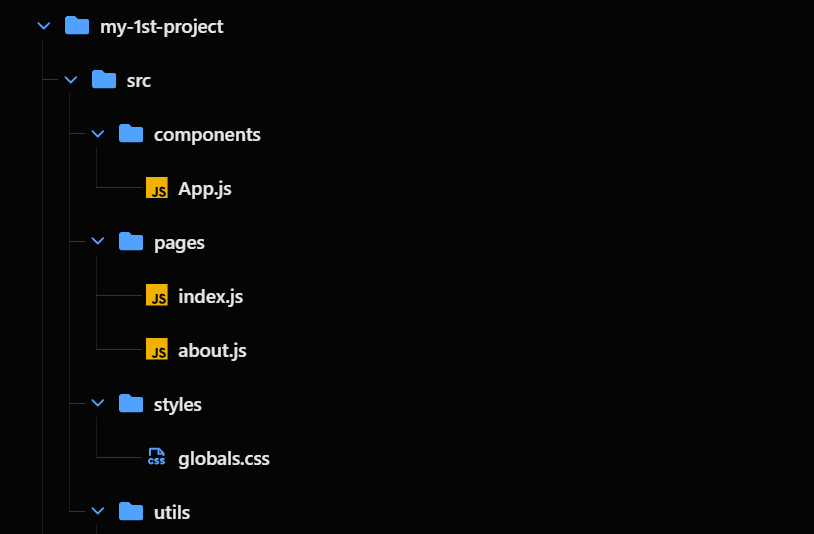
The Mermaid tab converts your folder structure into Mermaid diagram syntax. Platforms like GitHub, Obsidian, Notion, and GitBook render Mermaid natively, so instead of showing a text tree the structure appears as a visual graph.
Loading Mermaid diagram...
A mermaid file tree is useful for architecture documentation, project planning documents, and team wikis where showing the hierarchy visually makes more sense than a text-based ASCII tree diagram. If you need a mermaid directory tree or mermaid folder structure diagram for a technical spec, this tab gives you the exact syntax to paste in.
The mermaid directory structure output also works well in system design discussions where non-technical stakeholders need to understand the project layout without reading lines of ASCII characters.
Emoji — Visual Tree
The Emoji tab adds folder and file icons to the structure. Readers can tell at a glance what is a folder and what is a file without reading carefully. This format works well in tutorials, onboarding documents, and educational content where the ASCII tree view might feel less approachable.
Export Options
The Export button in the editor opens four download options. Each one is for a different use case.
Download as SVG gives you a scalable vector file of the tree. SVG files stay sharp at any size so this is the right choice for documentation websites, architecture diagrams, and any situation where the image needs to scale without losing quality.
Download Advanced SVG (Icons) gives you the same SVG but with folder and file icons added to each item. This is a more visual version suited for presentations, onboarding docs, and anywhere you want the structure to look polished rather than plain.
Download as PNG exports a standard image of the tree. Use this for blog posts, tutorial screenshots, presentation slides, and social content. PNG is supported everywhere and requires no special viewer.
Download Advanced PNG (Icons) is the same as PNG but with icons. Useful for the same situations as the basic PNG but with a more visual result.
Download as PDF gives you a PDF version of the tree. This is useful for project reports, formal documentation, and anywhere you need to share or print the structure as a document.
ASCII File Tree Generator — Text Output Examples
Here are common project structures you can recreate in the editor and use in your own documentation.
React Project Structure
src
├── components
├── pages
├── hooks
├── services
├── utils
├── assets
└── App.jsx
Next.js Project Structure
src
├── app
├── components
├── lib
├── hooks
├── actions
└── middleware.js

public
Node.js Backend Structure
src
├── routes
├── controllers
├── services
├── models
├── middleware
└── config
Python Project Structure
project
├── src
├── tests
├── docs
├── config
└── requirements.txt
Where to Use the Output
The most common use is adding the ASCII directory tree to a README.md. Copy the Text output, paste it inside a code block using triple backticks, and GitHub renders it exactly as it appears in the preview.
The Mermaid output can go directly into any GitHub wiki page, Notion doc, or Obsidian note that supports Mermaid rendering. The emoji tree works well in onboarding guides and tutorials where a more visual format helps readers scan faster.
The PNG and SVG exports are for anywhere you need an image — blog posts, presentations, PDFs, and documentation sites where you cannot paste plain text or Mermaid syntax.
Common Questions
How do I make a folder tree in a README.md file?
Type your structure into the editor, select the Text tab in the preview, and click Copy. In your README.md paste it inside a code block with triple backticks. GitHub displays it as a clean ASCII directory tree.
What is the difference between this and the GitHub File Tree Visualizer?
The GitHub File Tree Visualizer reads the actual structure from a GitHub repository automatically. This manual tool is for typing a structure yourself — useful for planned projects, simplified documentation, tutorials, or private codebases.
Is this the same as a filetree generator or file structure text generator?
Yes. This tool works as a filetree generator — you type the structure and it produces the formatted output. The Text tab specifically works as a file structure text generator, giving you plain ASCII output you can paste anywhere text is supported.
Can I generate a mermaid directory tree from this?
Yes. Switch to the Mermaid tab and the tool converts whatever you typed into mermaid folder structure syntax ready to paste into any supported platform.
What is the difference between ASCII folder structure and mermaid folder structure?
ASCII folder structure is plain text using line characters to show hierarchy. Mermaid folder structure is diagram syntax that platforms render as a visual graph. Both show the same information, the difference is how they display.
Does this work as a markdown folder structure generator?
Yes. The Text output is formatted for Markdown code blocks. Copy it, wrap it in triple backticks in your markdown file, and it displays as a clean file structure ASCII tree.
I want to actually create the folders, not just visualize them. What should I use?
Use the Create Folder Structure Online tool. It takes a structure and generates a downloadable zip with the actual folders and files inside.