
GitHub Changelog Generator: How to Turn Commits Into a Real Changelog
A changelog is a list of what changed in your project, version by version. Most projects keep it in a file called CHANGELOG.md. Writing one by hand takes time, so this tool builds it for you from a GitHub URL, from a form, or with AI. This guide explains what a changelog is, the format developers actually use, and how to generate one with this tool in under a minute.
What Is a Changelog
A changelog is a record of changes to a project, grouped by version and dated. Each entry says what was added, what was fixed, what changed, or what was removed. It lives in the root of a repository, usually as CHANGELOG.md, and it is one of the first files developers check before they update a dependency.
It is different from your commit history. A commit log is written for developers and is full of internal detail: variable renames, small refactors, test fixes. A changelog is written for the people using your software, and it only lists changes that actually affect them.
Changelog vs Release Notes
People use these two terms interchangeably, but there is a small difference. A changelog is a running, cumulative file that covers every version your project has ever had. Release notes are usually a one-time announcement for a single release, often posted on a blog, in an email, or as a GitHub Release.
In practice, most small and mid-size projects use the same content for both. You write the changelog entry once, then either link to the CHANGELOG.md file or paste that section into your GitHub Release. This tool supports both: export the whole file, or copy just the latest version to paste into a release.
Why a Changelog Matters
A changelog is not just documentation. It does three concrete things.
- It cuts down support requests. When a feature shows up and nobody knows it shipped, you get a support ticket asking for that exact feature. A changelog stops that before it starts.
- It protects users from breaking changes. If a new version changes behavior or removes something, the changelog is where someone checks before they upgrade. Without it, people upgrade blind.
- It signals the project is active. A repository with a changelog that gets updated every release looks maintained. One with no changelog, or one that stopped at version 1.2, looks abandoned, even if the code is fine.
The Format: Keep a Changelog
Most projects follow a format called Keep a Changelog. It is not a tool, just a convention. Every version gets a heading with a number and a date. Under that heading, changes are grouped into four categories:
- Added — new features or new capability
- Changed — updates to something that already existed
- Fixed — bug fixes
- Removed — features or code that no longer exist
Here is what one version looks like in this format:
Markdown Content
## 2.4.0 - 2026-06-12

### Added
- Dark mode toggle in settings
- Export changelog as JSON

### Fixed
- Crash when uploading images over 10MB
- Login redirect loop on mobile Safari

### Changed
- Faster search with cached resultsEach line is short and specific. There is no paragraph explaining the dark mode toggle, because it does not need one. That is the entire point of the format: a reader should be able to scan a version in a few seconds.
Semantic Versioning, Briefly
Changelog versions usually follow semantic versioning, written as MAJOR.MINOR.PATCH, for example 2.4.0.
- MAJOR goes up when you make a breaking change.
- MINOR goes up when you add a feature that does not break anything.
- PATCH goes up when you fix a bug without changing behavior.
You do not need to follow this strictly to use a changelog, but it gives your version numbers meaning. A user can look at a jump from 2.4.0 to 3.0.0 and know, before reading a single line, that something might break.
Manual, Git, or AI: Which Mode to Use?
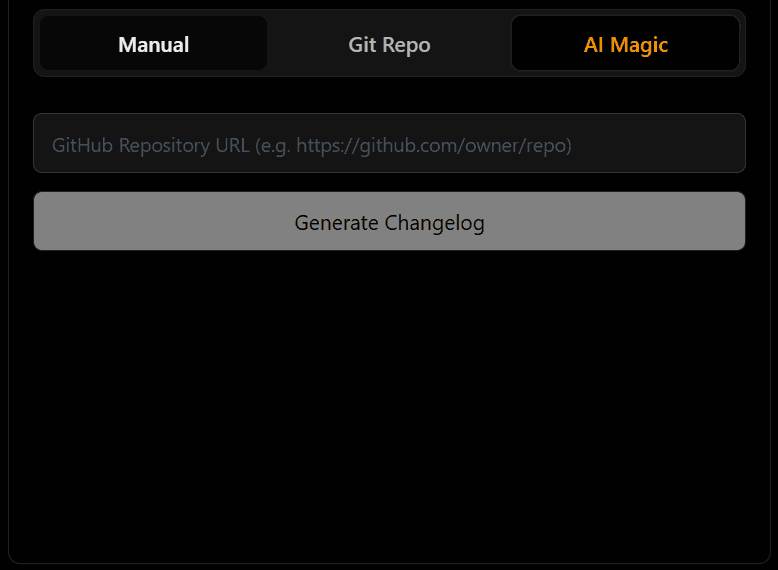
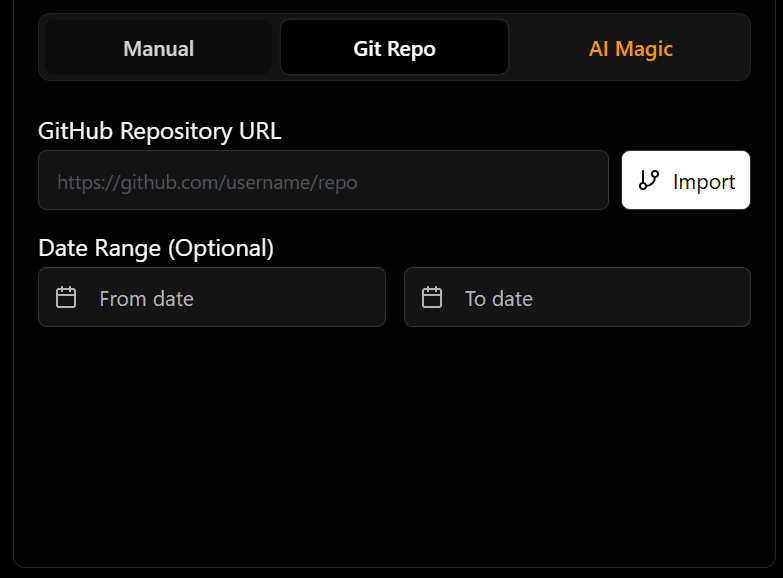
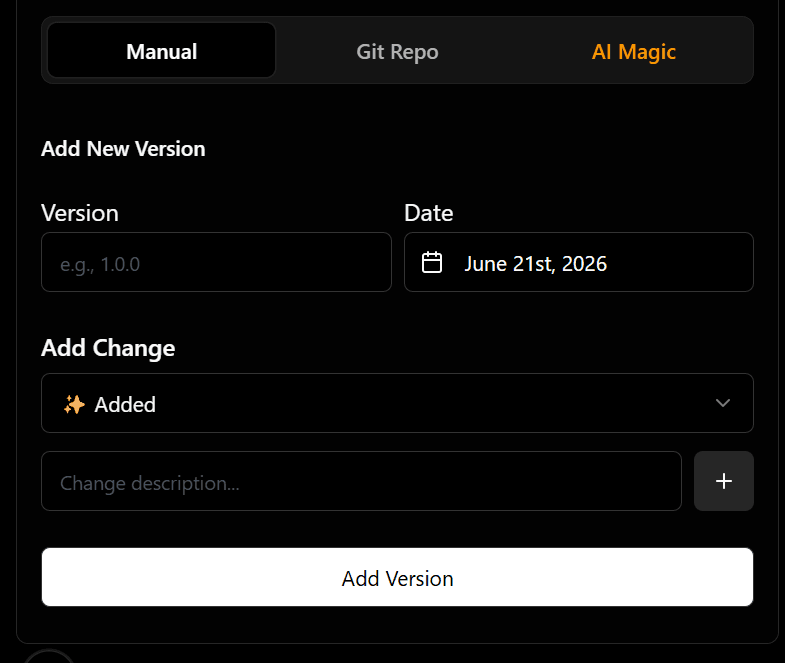
The Changelog Generator has three magic tabs at the top. Here is how each one works in super simple terms!
1. Manual Input (Build it yourself!)
This tab lets you build your changelog by hand. It is as easy as filling out a form!
- Add a Version: Type in your version number (like 1.0.0 or 2.1).
- Choose a Date: Click the calendar to pick the exact day you made these changes.
- Choose What Changed: Use the dropdown menu to pick the right category for your change:
- If you built a brand new feature in your project, choose Added.
- If you changed how an existing feature works, choose Changed.
- If you solved a bug or error, choose Fixed.
- If you deleted old features or code, choose Removed.
- Add a Description: Type a short sentence explaining exactly what you did (for example: "Added a dark mode button").
- Click the Plus (+) Button: Click this button to add your change into the "Current Changes" list below.
- How to Edit: If you made a mistake, click the pencil icon next to your change to edit it, or click the trash can to delete it.
- Add the Final Version: When you are finished adding all your changes, click the big Add Version button at the bottom. Your version will now appear on the right side of the screen.
2. Git Repo (Let the computer do it!)
If your code is saved on GitHub, you can just paste your GitHub link here. The tool will automatically read all your past saves (commits) and instantly sort them into Added, Fixed, or Changed for you without you having to type anything!
3. AI Magic (Let the robot think for you!)
Sometimes we write messy commit messages. If you paste your GitHub link here, our super smart AI robot will read your code history, understand what you actually meant, and build a perfectly organized changelog out of it. It's basically magic!
Preview, Edit, and Export
No matter which tab you used, every result lands in the same right side panel. A few things to know about it:
- The panel shows your changelog in both raw Markdown and a rendered, readable view at the same time, and it updates live as you add, import, or edit entries.
- Click Edit to switch into the Markdown editor and change wording directly, instead of going back to the form for each fix.
- Use Download to export as Markdown, plain text, HTML, or JSON.
- Click Copy to copy the whole changelog to your clipboard, ready to paste into a GitHub release or your documentation.
How to Write Each Entry
Sorting commits into the right category is half the job. The other half is the wording. A few rules make a real difference here.
- Describe the outcome, not the implementation. "Added dark mode" tells a user something. "Refactored theme provider for CSS variables" does not, even though it might describe the same change.
- Be specific about what broke and what fixed it. "Fixed crash" is vague. "Fixed crash when uploading images over 10MB" lets a user check if the bug affected them.
- Skip internal-only changes. Dependency bumps, test coverage, code comments, and internal tooling do not belong in a user-facing changelog unless they change behavior.
- One line per change. If an entry needs a full paragraph to explain, it usually means the change should be split, or it needs a link to a separate doc instead of being explained inline.
Compare these two versions of the same change:
Bad:  Updated auth flow
Good: Fixed login redirect loop on mobile Safari
Mistakes That Make a Changelog Useless
- Pasting raw commit messages without editing. A commit that says "fix" or "wip" means nothing to a reader. Rewrite anything vague before you publish.
- One version with 40 changes under "Changed." If everything lands in one bucket, the categories stop being useful. Split changes properly even if it takes a few extra minutes.
- No version number, only a date. Version numbers give people something to reference in bug reports and support threads. Dates alone do not.
- Skipping releases. A changelog with gaps stops being trusted. If you skip documenting a release, people assume you might skip the next one too.
- Burying breaking changes. If an update breaks something, that line goes near the top of the version, not mixed in the middle with minor fixes.
Who Actually Reads Changelogs
It is easy to assume nobody reads this file, but a few specific groups check it regularly:
- Developers upgrading a dependency. Before running
npm updateon a major version, most developers open the changelog first to check for breaking changes. - Contributors to open source projects. A changelog shows what areas of the codebase are active, which helps someone decide where to open a pull request.
- Support and QA teams. When a bug report comes in, checking the changelog is usually faster than searching commit history to see if the issue was already fixed in a later version.
- End users of a product, before a major update. Even non-technical users check release notes when an app prompts them to update, especially if the update is large.
This Tool vs Command Line Generators
Tools like conventional-changelog or auto-changelog also generate changelogs from git history, but they run from the command line. You install a package, set up a config file, and they work best when your whole team already commits using a strict format.
This tool skips that setup. There is nothing to install. You paste a URL in a browser and get a result. The tradeoff is that CLI tools fit better inside an automated release pipeline, where a changelog gets generated and committed every time a new version is tagged. If you already have that kind of automation running in CI, a CLI tool may still be the better fit for that specific step.
For a manual release process, especially on a solo project or small team, a browser tool that finishes in under a minute is usually faster than maintaining a CLI toolchain for something you run every couple of weeks.
Frequently Asked Questions
What is a changelog and why do I need one? A changelog is a document that records all notable changes to your project over time. It helps users understand what's new, what's been fixed, and what's changed between versions. Changelogs improve project transparency, help users plan upgrades, and make your project more professional and trustworthy.
How does the Git integration work? Simply provide your GitHub repository URL and our tool will automatically fetch your commit history. It categorizes commits based on conventional commit formats (feat:, fix:, etc.) and emoji commits (✨, 🐛, etc.). You can also specify date ranges to focus on specific release periods.
What types of changes can I categorize? Our tool supports four standard changelog categories: Added (new features), Changed (modifications), Fixed (bug fixes), and Removed (deprecated features). These follow industry best practices and make your changelog easy to understand for users.
Is my repository data secure when using Git integration? Yes! We only access public repository data through GitHub's public API. We never store your repository information, commit history, or any private data. Your project information remains secure and confidential.
How often should I update my changelog? Best practice is to update your changelog with every release. For active projects, this might be weekly or monthly. For each release, document all user-facing changes, bug fixes, and breaking changes to keep users informed about what's new.
Generate Your Changelog
Paste your repository URL, pick manual, Git, or AI import, and get a properly formatted changelog ready to copy in under a minute.