Dynamic File Tree for GitHub README
Generate a dynamic GitHub README file tree that automatically stays in sync with your repository. Copy the markdown snippet into your README and your project structure will update whenever your repository changes.
What Is a Dynamic GitHub File Tree?
A dynamic GitHub file tree is a live representation of your repository's folder structure that can be embedded directly into your GitHub README, documentation, or website. Unlike a static file tree that is generated once and pasted into a Markdown file, a dynamic file tree reflects the current state of your repository and can stay synchronized as your project evolves.
As software projects grow, folders are renamed, new files are added, and old directories are removed. A manually created file tree quickly becomes outdated unless someone remembers to regenerate it after every structural change. A dynamic file tree removes that maintenance work by displaying a structure generated from your repository instead of relying on an old snapshot.
For open-source projects, libraries, templates, and large applications, an up-to-date file tree helps contributors understand the project layout before they start exploring the code. Visitors can immediately see how the repository is organized, where the source code lives, and how different parts of the project relate to each other without opening dozens of folders manually.
Instead of spending time maintaining documentation, you can focus on building your project while keeping your repository structure accurate for everyone who visits your README.
Why Static File Trees Become Outdated
Most developers generate a file tree once, paste it into their GitHub README, and never update it again. At that moment, the tree matches the repository perfectly. But as the project grows, the repository starts changing while the README stays the same.
New folders are added, files are renamed, and old directories are removed. After a few weeks or months, the file tree shown in the README no longer matches the actual project structure. Visitors may waste time looking for folders that no longer exist or miss new parts of the project because they are not shown in the outdated tree.
Keeping a static file tree updated means generating a new tree every time the repository structure changes and replacing the old one manually. For active projects, this quickly becomes another maintenance task that is easy to forget.
A dynamic file tree removes that extra work. Instead of updating the tree yourself, it stays connected to your repository and reflects the latest folder structure, helping your README stay accurate as your project grows.
Benefits of Using a Dynamic File Tree
A dynamic file tree helps you keep your GitHub README up to date without doing the same work again and again. Instead of replacing the file tree every time your project changes, the latest folder structure can be shown automatically.
Always Shows the Latest Project Structure
As your repository grows, new folders and files are added. A dynamic file tree can reflect those changes, so visitors see the latest project structure instead of an old one.
Saves Time
You don't have to generate a new file tree after every update. Once it's added to your README, there is much less manual work to do.
Helps People Understand Your Project Faster
A file tree gives visitors a quick overview of your repository. They can see where the source code, configuration files, and other important folders are located before opening the project.
Keeps Your README Accurate
An outdated file tree can confuse contributors and users. Keeping it updated makes your README more useful and helps everyone understand the current project structure.
Live Example of a Dynamic GitHub File Tree
The example below shows a dynamic GitHub file tree generated from a real repository. Instead of creating the folder structure manually, the tree is generated directly from the repository and shows the latest project structure.
Every repository has a different folder structure. The generated tree updates based on the selected repository, making it easier to share the current project structure in your GitHub README without creating a new file tree manually after every change.
How a Dynamic GitHub File Tree Works
A dynamic file tree is generated directly from a GitHub repository. Instead of creating the folder structure yourself, you only need to enter the repository details. The tool reads the project structure and generates a file tree that you can embed in your GitHub README.
When someone opens your README, the embedded tree displays the current folder structure of the selected repository. This removes the need to copy and paste a new file tree whenever your project changes.
| Step | What Happens |
|---|---|
| 1 | Enter your GitHub repository. |
| 2 | The tool reads the repository structure. |
| 3 | A dynamic SVG file tree is generated. |
| 4 | Copy the generated image URL or Markdown code. |
| 5 | Paste it into your GitHub README. |
Every time your repository structure changes, the embedded file tree can reflect those changes without creating a new image manually.
Customize Your Dynamic File Tree
Every project is different, so you can change how your file tree looks before adding it to your GitHub README. Choose a style that matches your project and show only the folders and files you want visitors to see.
Choose a Style
Pick between the default style or the emoji style. Both display the same project structure, but each gives your README a different look.
Change the Appearance
You can show or hide the header, border, and file icons. These options help you create a clean file tree that matches the design of your README.
Show Only Important Files
Large repositories often contain folders that do not need to appear in a README. Hide unnecessary files and folders so readers can focus on the main project structure.
Control Folder Depth
Limit how many folder levels are displayed. A smaller depth keeps the file tree short and easy to read, while a larger depth shows more of your project structure.
Best Practices for Adding a File Tree to Your GitHub README
A file tree should help people understand your project quickly. Keeping it clean and simple makes your README easier to read.
Show Only Important Folders
Focus on the main folders that explain your project. Showing every file can make the tree too long and difficult to follow.
Hide Generated Files
Build files, cache folders, and dependencies usually do not help readers understand your project. Hide them to keep the file tree clean.
Keep the Tree Short
A shorter file tree is easier to scan. If your project is large, limit the folder depth so visitors can understand the overall structure without scrolling through hundreds of files.
Match Your README Style
Use a style that fits the rest of your README. A simple and consistent layout makes your project look more organized.
Keep Your File Tree Updated Automatically
Updating a file tree by hand every time your project changes takes extra time. With automatic updates, the embedded file tree can display the latest project structure without creating and replacing a new image manually.
After setting up automatic updates, changes like adding folders, removing files, or renaming directories can appear in the embedded file tree. This helps keep your GitHub README in sync with your repository.
Why Use Automatic Updates?
Automatic updates save time and reduce the chance of showing an outdated project structure. Visitors always see a file tree that matches your current repository.
Webhook Support
You can connect GitHub webhooks to refresh the file tree whenever changes are pushed to your repository. This removes the need to update the embedded file tree after every commit.
Works for Active Projects
Projects change every day. Automatic updates are useful for open source projects, team repositories, and any project that receives regular commits.
Dynamic vs Static GitHub File Tree
Both dynamic and static file trees help explain your project structure, but they work differently. A static file tree is created once and stays the same until you replace it. A dynamic file tree can show the latest project structure without creating a new tree after every update.
| Feature | Dynamic File Tree | Static File Tree |
|---|---|---|
| Updates | Can show the latest repository structure. | Needs to be updated manually. |
| Maintenance | Very little manual work. | Needs a new file tree after project changes. |
| Best For | Projects that change often. | Projects that rarely change. |
| Accuracy | Shows the current project structure. | Can become outdated over time. |
| README Maintenance | Less work after setup. | Requires manual updates. |
If your repository is active and new files are added regularly, a dynamic file tree can save time and keep your GitHub README accurate. A static file tree is still a good choice for projects that rarely change.
Common Mistakes When Adding a File Tree to a GitHub README
A file tree should make your project easier to understand. Small mistakes can make it confusing or difficult to read. Here are a few things to avoid.
Showing Too Many Files
A long list of files makes the tree difficult to scan. Show the main folders and files that help explain your project.
Including Temporary or Generated Files
Files created during development or the build process usually do not need to appear in your README. Hiding them keeps the file tree clean.
Using Too Many Folder Levels
Displaying every folder level can make the file tree very long. Limit the depth so visitors can understand the project without scrolling through hundreds of lines.
Forgetting to Update a Static File Tree
If you use a static file tree, remember to update it after changing your project structure. An outdated file tree can confuse contributors and visitors.
Using Different Styles Across the README
Try to keep the same style across your README. A consistent layout makes the project look cleaner and easier to follow.
Who Should Use a Dynamic GitHub File Tree?
A dynamic GitHub file tree is useful for anyone who wants to show the project structure in a GitHub README. It works well for both small and large repositories and saves time when the project keeps changing.
Open Source Maintainers
Help contributors understand the project structure before they start exploring the repository.
Students
Make college projects and personal repositories easier to present by showing a clear folder structure in the README.
Developers
Save time by showing the latest project structure without creating a new file tree after every update.
Teams
Give team members a quick overview of the repository so they can find important folders faster.
Template Creators
Display the folder structure of starter projects, boilerplates, and templates so users know what each folder contains before downloading the project.
Where Can You Use a Dynamic GitHub File Tree?
A dynamic GitHub file tree can be used anywhere you want to show your project structure. It helps readers understand how a repository is organized before they start exploring the code.
GitHub README
Add the file tree to your repository README so visitors can quickly see the project structure without opening multiple folders.
Project Documentation
Include the file tree in your project guides to explain how the repository is organized and where important folders are located.
Open Source Projects
Help contributors understand the repository before they clone the project or submit their first pull request.
Portfolio Projects
Show the structure of your personal projects and make your GitHub profile easier to explore.
Starter Projects and Boilerplates
Give users a clear overview of the project structure before they download or use your template.
Why Use a Dynamic File Tree in Your GitHub README?
A file tree is one of the easiest ways to help people understand a repository. Instead of opening multiple folders and exploring the project manually, visitors can quickly see how everything is organized directly from the README. The problem is that most file trees are static. They are generated once, pasted into the README, and then forgotten. As the project grows, new folders are added, files are renamed, and old directories are removed, but the README continues showing an outdated structure.
A dynamic file tree solves this problem by staying connected to your repository. Instead of manually generating a new tree every time the project changes, the displayed structure can update automatically. This helps keep documentation accurate and makes it easier for contributors, users, and developers to understand the current state of the repository. Using the Dynamic GitHub File Tree, you can embed an auto-updating repository structure directly into your README without worrying about keeping it in sync manually.
What Does the Dynamic File Tree Show?

The generated dynamic file tree displays your repository structure in a clean, easy-to-read format. Instead of showing a long list of files, the tree organizes everything visually so visitors can quickly understand how the project is structured. Folders appear at the top level, while files are displayed underneath using familiar tree branches. This makes it easier for contributors, users, and developers to explore the project before opening individual files or cloning the repository.
To improve readability, the tree also includes file and folder icons. Folder icons help separate directories from files, while file icons make the structure feel more familiar and visually organized. Because the tree is generated directly from repository data, it reflects the actual project structure instead of relying on a manually created snapshot that can become outdated over time.
Folders and Files
Directories and files are displayed in a hierarchical tree structure, making it easy to understand how different parts of the project are connected.
File and Folder Icons
Icons help distinguish folders from files at a glance, improving readability and making large project structures easier to navigate.
Repository Structure
The tree provides a clear overview of the repository layout, helping visitors quickly locate important files such as README files, source code, configuration files, assets, and documentation.
How to Generate a Dynamic File Tree
Creating a dynamic file tree starts by entering your GitHub repository URL and fetching the repository structure. The generator will create a live preview that can be embedded directly into your README. Before generating the final embed code, you can customize both the appearance of the tree and the files that should be displayed. This gives you complete control over how your repository structure appears to visitors.
Unlike traditional file tree generators that produce a fixed snapshot, this tool allows you to adjust themes, styles, visibility settings, and filtering options before embedding the tree. These customization options make it possible to create a cleaner and more focused view of your project while hiding unnecessary files and folders.
Visual Customization Options
Show Header
Displays the repository name and avatar above the file tree. This helps visitors immediately identify which repository the tree belongs to, especially when the tree is shared outside GitHub.
Show Border
Adds a border around the generated tree. A border can help separate the file tree from the rest of your README content and make it stand out visually.
Theme
Choose between dark and light themes to match your GitHub profile, documentation, or website design. This helps the tree blend naturally with the surrounding content.
Style
The tree can be displayed using a traditional ASCII style such as ├── and └── or with emoji-based folder icons. The ASCII style is compact and developer-friendly, while the emoji style provides a more visual representation of the repository structure.
Transparent Background
Removes the solid background color from the generated image. This option is useful when embedding the tree into websites or README sections that already have their own background styling.
Font Size
Adjust the size of the text displayed in the tree. Larger font sizes improve readability, while smaller sizes allow larger repository structures to fit within a limited space.
Repository Filters
Maximum Depth
Controls how many folder levels should be displayed. Limiting the depth can help keep large repositories readable by showing only the most important parts of the project structure.
Folders Only
Hides all files and displays only directories. This option is useful when you want to provide a high-level overview of the project without exposing every individual file.
Include Hidden Files
Allows hidden files and folders such as .env, .gitignore, and other dotfiles to appear in the generated tree. This can be useful for documentation purposes when those files are important to the project structure.
Exclude Files and Folders
Choose specific files or directories that should not appear in the final embed. This is useful for hiding generated files, build artifacts, dependency folders, temporary files, or any other content that would make the tree unnecessarily large.
Copy the Embed Code
Once the tree looks the way you want, simply copy the generated markdown code and paste it into your GitHub README. The embedded file tree will display your repository structure and can continue updating automatically as the repository changes.
How Caching and Webhooks Work
To prevent hitting GitHub's API rate limits, the dynamic file tree automatically caches your repository structure for 24 hours. For most projects, this is perfectly fine. If you push new code to your repository, the file tree in your README will automatically update itself after the 24-hour cache expires.
However, if you are actively working on a project and want your README file tree to update instantly the second you push new code, you can set up a free GitHub Webhook.
How to Add the Webhook to Your GitHub Repo
Setting up the webhook takes less than a minute. It simply tells GitHub to notify our server whenever you push new code so we can refresh your specific file tree immediately.
- Go to your GitHub repository and click on Settings.
- In the left sidebar, click on Webhooks, then click the Add webhook button.
- In the Payload URL field, paste this exact link:
https://www.readmecodegen.com/api/webhook/github-tree - Change the Content type to
application/json. - Under "Which events would you like to trigger this webhook?", leave it selected as Just the push event.
- Click Add webhook to save it.
Benefits of Using the Webhook
Once the webhook is added, you never have to think about it again. Every time you push a commit, create a new folder, or delete a file, GitHub instantly notifies the file tree generator. Your embed is immediately refreshed without having to wait for the standard 2-hour cache. This ensures your documentation is always perfectly in sync with your actual codebase in real-time.
Why Static File Trees Become Outdated
Most README file trees are created once and then forgotten. When a project is first published, the repository structure shown in the README is usually accurate. However, repositories rarely stay the same for long. New folders are added, files are renamed, directories are reorganized, and old files are removed. As these changes accumulate, the file tree shown in the README slowly stops matching the actual repository structure. Visitors may end up seeing folders that no longer exist or miss important parts of the project that were added later.
This problem becomes more noticeable in active projects where updates happen frequently. Every time the repository structure changes, someone has to manually generate a new tree and update the README. In practice, this rarely happens because maintaining documentation is often overlooked while development continues. A dynamic file tree removes this maintenance burden by keeping the displayed repository structure synchronized with the project. Instead of manually rebuilding the tree after every change, the embedded version can continue reflecting the latest structure automatically.
New Files and Folders
As projects grow, new directories, components, assets, and configuration files are added. Static trees often fail to reflect these additions unless they are regenerated manually.
Repository Refactoring
Many projects eventually reorganize their folder structure to improve maintainability. When folders are renamed or moved, old README file trees quickly become inaccurate.
Documentation Maintenance
Keeping documentation synchronized with a changing repository takes time. Dynamic file trees help reduce this maintenance work by ensuring the displayed structure stays aligned with the repository itself.
Where Can You Use a Dynamic File Tree?
A dynamic file tree can be used anywhere you want to help people understand your repository structure without manually browsing folders. Because the tree is generated as an embeddable image, it can be added to GitHub READMEs, project documentation, portfolio websites, and technical blogs. This makes it easier for contributors, users, and developers to understand how a project is organized before they start exploring the codebase.
Many open-source projects already include installation guides, screenshots, and feature lists in their documentation. Adding a file tree alongside that information provides additional context by showing where important files and folders are located. Since the tree can update automatically, it also helps keep documentation accurate as the repository grows and changes over time.
GitHub README
The most common use case is embedding the tree directly into a GitHub README. Visitors can quickly understand the project structure without cloning the repository or opening multiple folders manually.
Project Documentation
Documentation often references folders, configuration files, and source code locations. A dynamic file tree helps readers visualize the repository structure while reading setup guides and technical documentation.
Developer Portfolios
Developers can showcase the structure of important projects on portfolio websites. This can be especially useful when demonstrating larger applications with multiple modules and directories.
Technical Blogs and Tutorials
When writing tutorials or explaining a project architecture, a file tree provides a simple visual overview of the repository. Readers can understand the folder structure immediately without relying on screenshots or long explanations.
Dynamic File Tree vs Static File Tree
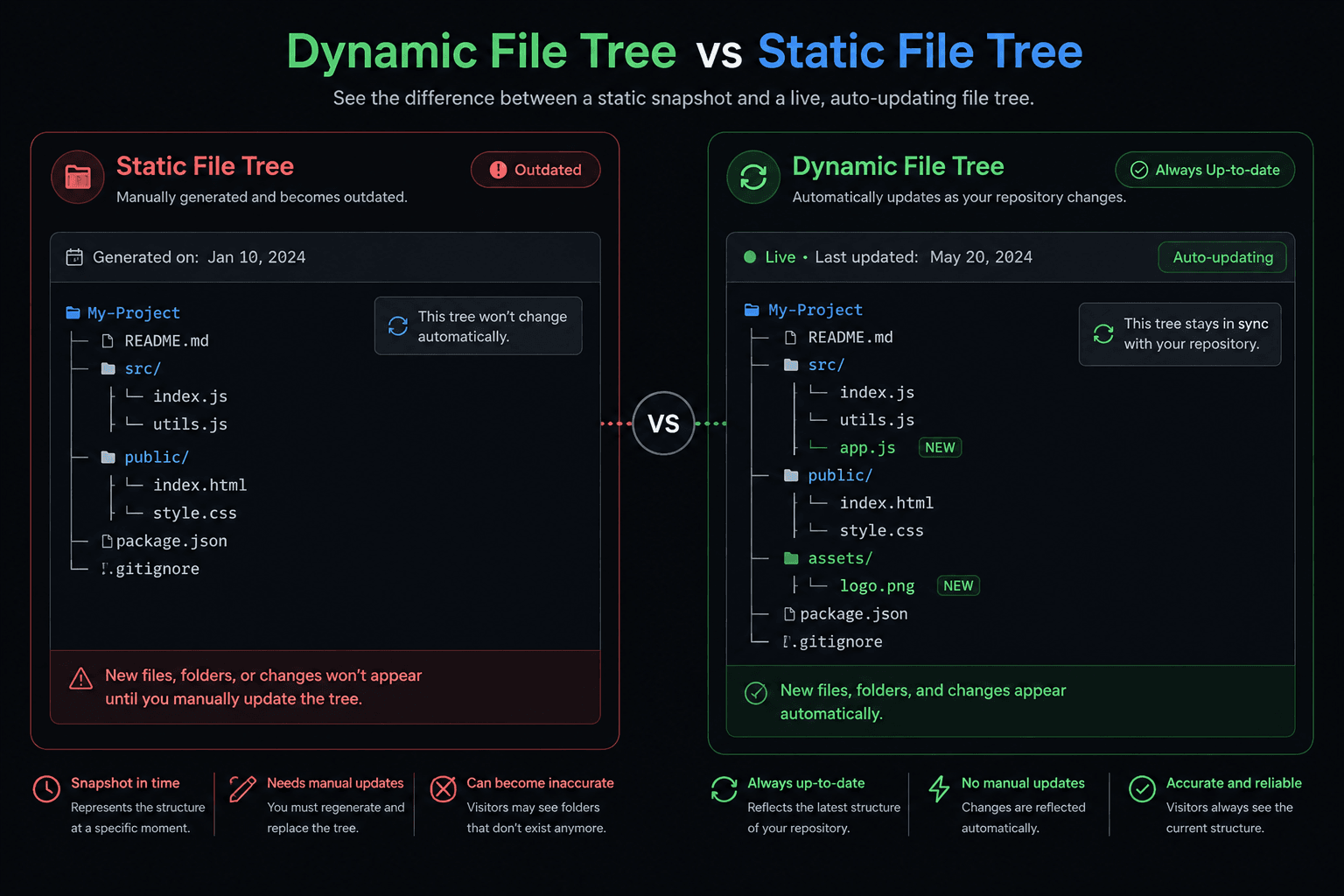
At first glance, a static file tree and a dynamic file tree may look very similar. Both display the folders and files inside a repository and help visitors understand the project structure. The difference becomes noticeable when the repository starts changing. A static tree is simply a snapshot taken at a specific point in time. Once it is added to a README, it remains unchanged until someone manually generates a new version and replaces the old one.
A dynamic file tree takes a different approach. Instead of relying on a fixed snapshot, it generates the structure from repository data and can stay synchronized as the project evolves. This reduces maintenance work and helps prevent outdated documentation. For active repositories, this can save time while ensuring visitors always see a structure that matches the current state of the project.
Static File Tree
A static tree is manually generated and pasted into a README. While it is simple to create, it must be regenerated whenever files or folders change. If it is not updated regularly, the displayed structure can become inaccurate.
Dynamic File Tree
A dynamic tree is generated from the repository itself and can continue reflecting the latest structure over time. This helps keep documentation aligned with the project without requiring frequent manual updates.
Which One Should You Use?
For small projects that rarely change, a static tree may be sufficient. However, for active repositories, open-source projects, and frequently updated applications, a dynamic file tree can help keep documentation accurate while reducing maintenance effort.
More Tools for GitHub Documentation
A dynamic file tree is a great way to keep your repository structure synchronized with your README, but it is only one part of good project documentation. Depending on your needs, you may also want to visualize your repository structure, create folder hierarchies from scratch, or generate documentation assets that make your projects easier to understand. Using the right tools together can help contributors and users navigate your repository more efficiently.
If you want a live, auto-updating repository structure, try the Dynamic GitHub File Tree. If you simply need to visualize or export a repository structure, the GitHub File Tree Visualizer can help. For planning a new project or creating a custom directory structure before writing code, you can use the Folder Structure Builder. You can also explore additional developer tools on ReadmeCodeGen to improve your GitHub README, documentation, and project presentation.
More Tools for Your GitHub Profile
A GitHub stats card can help visitors understand your profile activity, but many users combine multiple widgets to create a more complete GitHub README. Adding profile statistics alongside coding achievements, repository structures, and project information can make your profile easier to explore while giving visitors a better understanding of your work.
If you want to showcase your coding progress, try the LeetCode Stats Card Generator. For open-source projects and larger repositories, the Dynamic GitHub File Tree can automatically display your repository structure inside your README. You can also explore additional profile cards, README generators, and developer tools on the Tools Directory to further customize your GitHub profile.
Dynamic File Tree FAQ
How does the dynamic image embed actually work?