What Is the File Tree Export Tool?
The File Tree Export Tool helps you convert a project structure into multiple formats from a single place. Instead of creating separate versions for documentation, diagrams, presentations, or README files, you can generate everything from the same file tree and export it in the format you need.
You can paste an existing file tree, upload a file, preview the structure in different views, and export it as SVG, PNG, PDF, or Markdown. The tool also supports Mermaid diagrams and Emoji Trees for developers who want more visual documentation.
Whether you are documenting a React project, Next.js application, Node.js backend, Python project, or any other codebase, this tool makes it easier to share and reuse project structures across different platforms.
Why I Built This Tool
While working on project documentation, I often needed the same file tree in different formats. A text tree works well in a README file, but sometimes I needed a Mermaid diagram for documentation, an SVG for a website, or a PNG for a presentation.
The problem was that I kept recreating the same structure again and again. I would copy the tree, reformat it, take screenshots, or manually create diagrams just to use the same project structure in a different place.
I built this tool to remove that repetitive work. Instead of generating multiple versions manually, you can provide a file tree once and export it in the format you need.
Why I Built This Tool
I often needed to share project structures in different places. Sometimes I needed a text tree for a README file. Sometimes I needed a Mermaid diagram for documentation. Other times I wanted a PNG or PDF for a tutorial or presentation.
The structure itself stayed the same, but I kept creating different versions of it. I would copy the tree, reformat it, take screenshots, or manually rebuild it in another format. It was repetitive and took more time than it should.
This tool was built to make that process easier. You can provide a file tree once, preview it in different formats, and export the version you need without rebuilding the structure every time.
A project structure is often used in README files, technical documentation, tutorials, team guides, and presentations. Instead of creating separate versions for each place, you can generate them from a single source.
How It Works
The tool is designed to keep the process simple. You provide a file tree, choose the format you want, and export it. There is no software to install and no manual formatting required.
Paste or Upload a File Tree
You can paste an existing file tree directly into the editor or upload a supported file. The tool reads the folder structure and automatically builds a preview from it.
This is useful if you already have a project structure from a README file, terminal output, documentation page, or another tool.
Preview the Structure
After the file tree is loaded, the preview updates automatically. You can switch between different views to see how the same structure will look before exporting.
This makes it easy to verify that folders, files, and nesting levels are displayed correctly.
Choose an Output Format
The same file tree can be converted into different formats depending on where you plan to use it. Instead of rebuilding the structure multiple times, you can generate all supported formats from the same input.
Export or Copy
Once everything looks correct, export the structure in your preferred format or copy the generated output directly into your documentation, README file, tutorial, or presentation.
Preview Formats
The same file tree can be displayed in different ways depending on where you want to use it. Instead of creating separate versions manually, you can switch between preview formats and instantly see the result.
Text Tree
The Text Tree view displays a traditional folder structure using tree characters and indentation. This format is commonly used in README files, technical documentation, developer guides, and project documentation.
If you need a clean and familiar project structure, this is usually the best option.
What to Input
You can input almost any text-based tree structure. The tool looks for indentation or common tree characters (like ├── or └──) to understand how your folders are nested. If using pure text indentation, use exactly 2 spaces (or 1 tab) for each child level, and add a trailing slash (/) to folder names!
Emoji Tree
The Emoji Tree view adds folder and file icons to the structure. The project layout remains the same, but the visual indicators make it easier to scan and understand at a glance.
This format is useful for tutorials, educational content, blog posts, and documentation where readability is important.
Mermaid Diagram
The Mermaid view converts the file tree into Mermaid syntax. Instead of showing a text-based structure, it generates a diagram that can be rendered on platforms that support Mermaid.
Many developers use Mermaid diagrams to explain project architecture, folder relationships, and application structure in a more visual way.
You can review the generated diagram before exporting or copying it into your documentation.
Why Multiple Views Matter
Different platforms have different requirements. A README file may need a text tree, while documentation might look better with a Mermaid diagram. Presentations and tutorials often benefit from a more visual format.
By switching between preview types, you can choose the format that fits your workflow without recreating the same structure multiple times.
Export File Trees in Multiple Formats
A file tree is often used in different places. You may need a text version for a GitHub README, a Mermaid diagram for documentation, or an image for a tutorial. Instead of creating separate versions manually, this tool lets you export the same structure in multiple formats.
Export as SVG
The SVG file tree export option creates a scalable project structure diagram that stays sharp at any size. SVG files work well in documentation websites, technical articles, and developer portfolios because they can be resized without losing quality.
Export as PNG
The PNG export option converts your folder structure into a ready-to-share image. This format is useful for blog posts, tutorials, presentations, social media posts, and project documentation.
Export as PDF
The PDF export option is useful when you need to include a project structure in reports, training materials, project documentation, or downloadable resources.
Export as Markdown
Many developers use a Markdown file tree inside GitHub README files. This export generates a format that can be copied directly into Markdown documents without additional formatting.
Export as Mermaid Diagram
If you need a project structure diagram, the Mermaid export generates Mermaid-compatible syntax that can be used in supported documentation platforms. This is useful for explaining folder relationships and project architecture visually.
Copy and Reuse Anywhere
The generated output can be copied or downloaded and reused across GitHub repositories, project documentation, tutorials, technical blogs, onboarding guides, and architecture documents.
Common Uses for a File Tree Exporter
A file tree generator is useful whenever you need to explain how a project is organized. Instead of asking people to browse every folder manually, you can show the complete structure in a format that is easy to understand.
GitHub README Files
One of the most common uses of a file tree is inside a GitHub README. New contributors can quickly understand where components, pages, APIs, assets, and configuration files are located without opening the entire repository.
Project Documentation
Many teams include a project structure diagram in their documentation. A visual overview helps developers understand the codebase faster and provides context before they start reading implementation details.
Technical Tutorials
When writing a tutorial, readers often want to see the folder structure before they start building the project. A clear folder structure makes tutorials easier to follow and reduces confusion.
Open Source Projects
Open source repositories can contain hundreds of files. Adding a directory tree helps contributors find important folders and understand how the project is organized before making changes.
Team Onboarding
New team members often spend time figuring out where files are located. Sharing a project structure helps them become familiar with the codebase much faster.
Architecture and Planning
Before development begins, teams often discuss how folders, modules, and services should be organized. Exported file trees and Mermaid diagrams can be used during planning meetings and architecture discussions.
Popular Project Structures
This tool can be used to export structures for almost any type of project, including:
- React project structure
- Next.js folder structure
- Node.js project structure
- Express API structure
- Python project structure
- Django folder structure
- Flask application structure
- Monorepo project structure
No matter which technology stack you use, a well-presented file tree makes documentation easier to read and helps others understand the project more quickly.
Export Options
After generating a file tree, you can export it in different formats depending on where you plan to use it. Some formats are better for documentation, while others work better for presentations, blog posts, or GitHub repositories.
Standard SVG Export
The standard SVG file tree export creates a clean project structure diagram inside a window-style layout. SVG files remain sharp at any size, making them useful for documentation websites, technical articles, and developer portfolios.
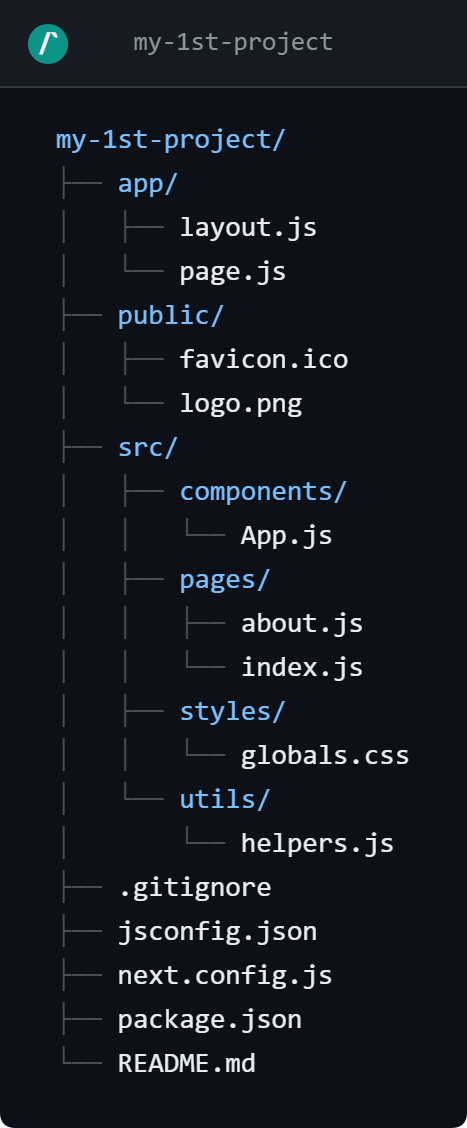
Because SVG is a vector format, the exported image can be resized without losing quality.
Standard PNG Export
The PNG export generates a ready-to-share image version of your folder structure. This format works well for tutorials, presentations, reports, social media posts, and documentation that requires static images.
Unlike SVG, PNG is supported almost everywhere and can be uploaded directly to most platforms.
Advanced SVG Export
The advanced SVG export automatically detects file types and adds icons to the generated structure. React files, TypeScript files, JavaScript files, CSS files, and many other file types become easier to identify at a glance.
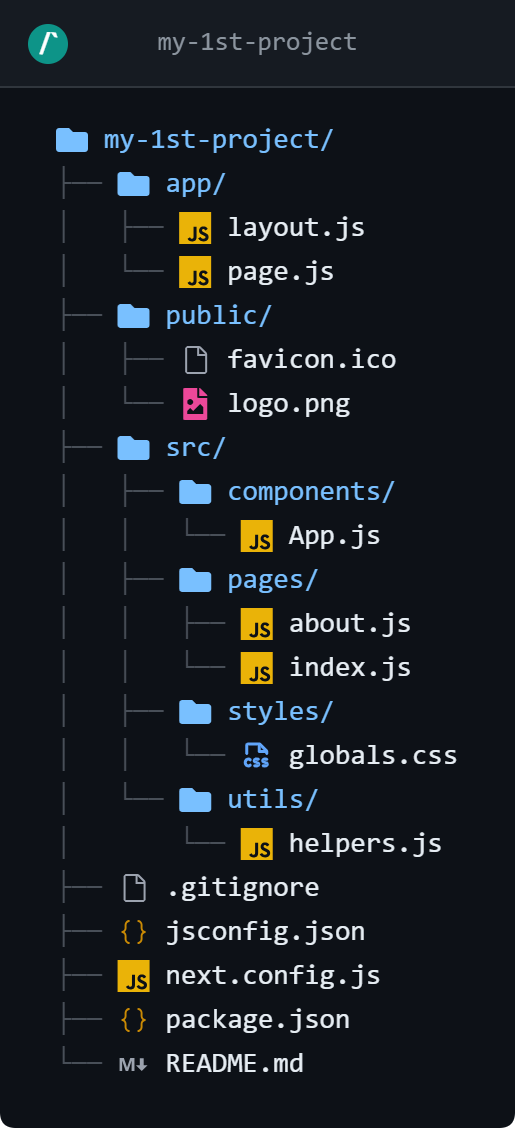
This format is useful when sharing large projects because readers can quickly understand the structure without reading every file name.
Advanced PNG Export
The advanced PNG export combines visual file icons with a portable image format. It is a good choice for tutorials, educational content, onboarding guides, and technical presentations where readability is important.
Markdown Export
Many developers need a Markdown file tree for GitHub README files. This export generates a structure that can be copied directly into Markdown documents without additional formatting.
It is especially useful for open-source projects, project documentation, and repository guides.
Mermaid Export
The Mermaid file tree export converts the structure into Mermaid syntax. Instead of a plain text tree, you get a diagram definition that can be rendered by platforms that support Mermaid.
This is useful when creating architecture diagrams, project documentation, technical specifications, and development guides.
PDF Export
The PDF export creates a downloadable document containing the generated project structure. This format is useful for reports, training materials, project submissions, and documentation that needs to be shared as a document.
Which Export Format Should You Use?
- SVG: Best for documentation websites and high-quality graphics.
- PNG: Best for sharing images and presentations.
- Markdown: Best for GitHub README files and documentation.
- Mermaid: Best for diagrams and visual documentation.
- PDF: Best for reports, guides, and printable documents.