Loading Editor...
What Is Markdown?
Markdown is a simple way to format text. Instead of using a heavy program like Microsoft Word, you use basic keyboard characters to style your writing. For example, adding two stars around a word makes it bold. Because it is just plain text, it loads very fast and works on almost any computer or website.
Why Developers Use Markdown
People who write code love Markdown because it is very clean. When you use normal writing software, it adds hidden code to make the text look good. This hidden code can cause problems when you try to put the text on a website. Markdown does not have this problem. It keeps everything neat, and it is very easy to read even before it is turned into a web page.
Common Uses of Markdown
You will see Markdown used in many places on the internet. It is the standard language for writing README files on GitHub. Many popular blogging platforms use it to write articles. People also use it for taking notes in apps, writing technical instructions, and chatting in programs like Discord or Slack.
Why Use Markdown Instead of Microsoft Word?
Cleaner Documents
Microsoft Word is great for printing, but it adds a lot of invisible styling rules to your text. Markdown keeps your documents perfectly clean. What you type is exactly what you get, which makes it much easier to copy and paste your work onto the web without breaking the page design.
Easier Version Control
Because Markdown is just plain text, it works perfectly with tools like Git. You can easily track exactly which words were changed, added, or deleted over time. Try doing that with a heavy Word document, and it becomes a mess.
Perfect for GitHub and Documentation
If you are sharing a project online, people expect to read a README.md file. Writing this in Word is simply not an option. Markdown is the universal language of software documentation, making your project look professional and easy to understand for any visiting developer.
Online Markdown Editor with Live Preview
Write and Preview at the Same Time
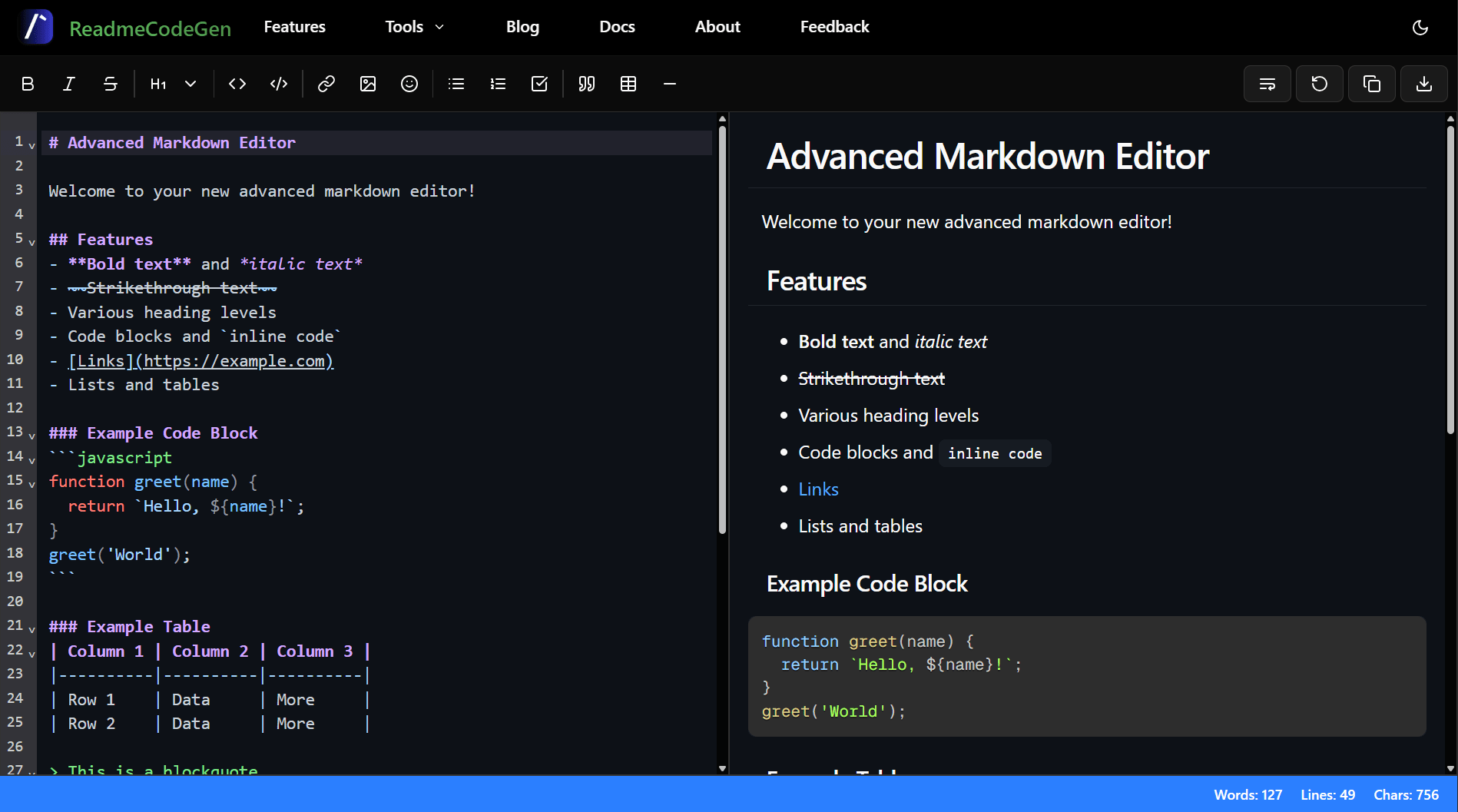
One problem with writing plain text is that you cannot always see what the final result will look like. We fixed this by building an online markdown editor with a split screen. On the left side, you type your words. On the right side, the tool acts as a powerful markdown viewer, showing you the finished document in real time.
See Formatting Changes Instantly
You never have to guess if you typed the correct symbol. The moment you press a key, the markdown live preview updates. If you make a mistake, like forgetting a bracket for a link, you will see it right away on the right side of your screen. This helps you work much faster.
Simple Formatting Without Learning Markdown Syntax
Format Text with One Click
The toolbar includes one-click formatting tools for bold text, italics, headings, links, images, lists, blockquotes, and code blocks. This makes it easy to create professional documents without memorizing Markdown syntax. Just highlight your text and click the button you need.
Advanced Markdown Editing Features
1. Code Blocks and Syntax Highlighting
If you write about programming, you need to share code safely so it does not get mixed up with normal text. By clicking the code button, you can wrap your text in a special code block. The editor highlights the code in different colors based on the programming language, making it very easy for others to read. Many developers combine Markdown documentation with diagrams. If you need flowcharts, architecture diagrams, or sequence diagrams, you can also create them using our Mermaid Diagram Generator and embed them directly into Markdown documents.
2. Task Lists and Checklists
Task lists help you track progress and organize project work. They are commonly used in GitHub README files, issues, and project documentation to show exactly what needs to be done.
3. Emoji Support
Text can be boring, so we added full emoji support. You do not have to search the internet to copy and paste emojis. Just click the smiley face icon on our toolbar to open the emoji picker.
4. Markdown Table Generator
Making a table by typing out lines and dashes on your keyboard is very slow and hard to get right. We built a markdown table generator to solve this. You just click the table icon, pick how many rows and columns you need, and the tool builds the exact table shape for you.
5. AI Enhancement and Format Code
If your notes are messy, click the AI enhance button (sparkles icon) to automatically fix grammar, correct spelling errors, and structure your document nicely. If your spacing is wrong, click the magic wand button to instantly clean up and format your code perfectly.
6. Editor Settings Tool
Customize your writing experience using the editor settings. You can toggle line numbers, change the theme, or adjust other preferences to match your perfect writing workflow.
7. Direct GitHub and Local File Import
You do not have to copy and paste text manually to start working. If you already have a Markdown file on your computer, you can load it directly into the editor. We also added a special feature for developers: just paste the link to any public GitHub repository, and the tool will instantly pull in its README file. This makes updating GitHub documentation incredibly fast and easy.
Markdown Syntax Examples
Here are a few basic examples to get you started. If you want a complete list of every command available, including advanced tables and HTML integration, check out our full Markdown Cheat Sheet.
Creating Headings
To create a heading, type the hash symbol (#) followed by a space. Use one hash for a main title, and up to six for smaller subtitles.
# Main Title (H1)## Subtitle (H2)### Smaller Title (H3)
Formatting Text
Use simple symbols around your words to format them:
- Bold:
**bold text** - Italic:
*italic text* - Bold & Italic:
***bold and italic*** - Strikethrough:
~~crossed out~~
Lists and Task Lists
You can create bullet points, numbered lists, or checkboxes for tasks.
- Bullet List:
- Item 1or* Item 1 - Numbered List:
1. First item - Task List (Unchecked):
- [ ] Task to do - Task List (Checked):
- [x] Completed task
Adding Links and Images
Links and images use brackets and parentheses.
- Website Link:
[Click Here](https://google.com) - Image:

Blockquotes
Use a greater-than sign to quote text or add a note.
- Quote:
> This is a blockquote.
Creating Tables
Tables use vertical pipes to separate columns and dashes for the header.
| Name | Age | | ----- | --- | | John | 25 | | Alice | 30 |Writing Code Blocks
To show code, use three backticks before and after the code. Add the language name to add syntax colors.
```javascript console.log("Hello World!"); ```Built for GitHub and README Files
GitHub Flavored Markdown Support
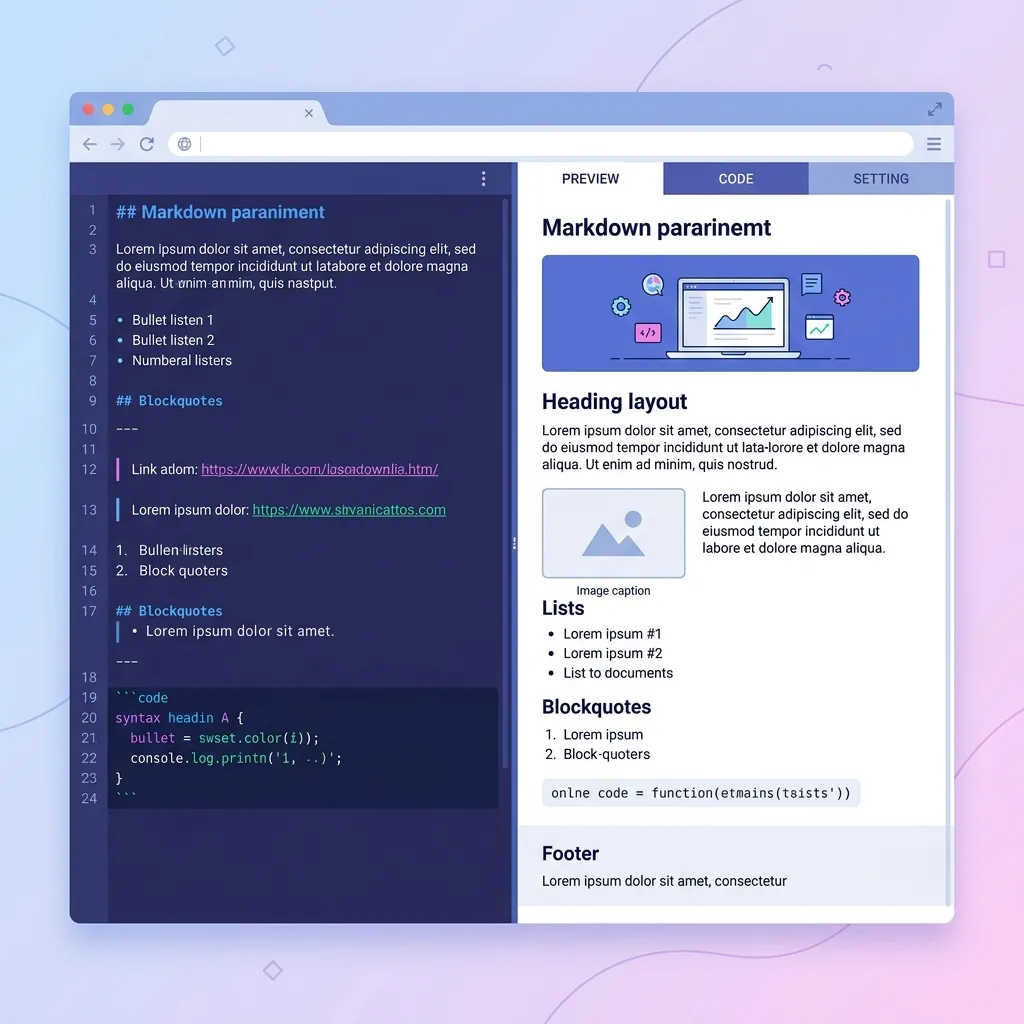
Our editor fully supports GitHub Flavored Markdown (GFM), including tables, task lists, code blocks, and other formatting commonly used in GitHub repositories. GitHub repositories often include structured project folders. To visualize your repository structure, you can generate a folder tree using our GitHub File Tree Visualizer and add it directly to your README.
Create Professional README Files
A README file is the front page of any software project. It tells people what your project is and how to use it. After drafting your content here, you can use our README Generator to automatically build complete project documentation with installation instructions, badges, and project sections.
Import and Export Markdown Files
1. Import Existing Markdown Documents
You can easily bring your own files into the editor. If you have a file saved on your computer, you can open it here to continue working. You can also import files directly by pasting the link to a public repository.
2. Export as Markdown (.md)
When you are done writing, you want to keep your work safe. With one click, you can download your writing as a standard .md file.
3. Export Markdown to PDF
Sometimes you need to share your document with someone who does not understand code. Our tool can turn your writing into a clean, professional PDF file. It keeps all your pictures, tables, and colors looking perfect. If you only need document conversion, you can also use our dedicated Markdown to PDF tool for quick exports without editing content.
4. Export Markdown to HTML
If you are building your own website, you need HTML code. Instead of rewriting everything, you can use our markdown to html converter to change your text into clean HTML code instantly.
5. Export Markdown to DOCX
Many schools and offices still use Microsoft Word. If you need to hand in a school paper or a business report, you can export your work as a DOCX file. It will open perfectly in Word or Google Docs.
Supported Markdown Features
GitHub Flavored Markdown
Our editor fully supports GFM, ensuring your documents look perfect on GitHub and other code hosting platforms.
Tables and Task Lists
Easily create structured data and interactive checklists without manually typing complex syntax.
Code Blocks and Syntax Highlighting
Share code snippets safely with automatic syntax highlighting for dozens of programming languages.
Images and Links
Embed images directly into your text and hyperlink to other resources with a single click.
Who Can Use This Markdown Editor?
Developers
Programmers use this tool every day to write documentation for their code. It is the fastest way to write a README file, create guides for an API, or write notes about how a system works.
Technical Writers
People who write instruction manuals love this editor because it helps them organize long documents easily. The heading tools and table generator save them hours of formatting work.
Students and Content Creators
Students use this tool to take clean notes during class. Bloggers use it to draft their posts. Because it is so simple to use, anyone can learn it in just a few minutes.
Your Documents Stay Private
Runs Directly in Your Browser
We respect your privacy. All editing and preview rendering happens directly in your web browser. We do not save or upload your private documentation to our servers.
No Registration Required
We do not ask for your email address, and you do not need to create a password or log in. We believe tools should be simple, safe, and open. You can just open the page and start typing securely immediately.
Why Choose ReadmeCodeGen Markdown Editor?
No Installation Required
You do not need to download or install any heavy software on your computer. Everything runs directly inside your web browser. This means you can use it on any computer, anywhere in the world.
Works on Desktop and Mobile
Whether you are sitting at a big desk with a large monitor or riding the bus with your phone, the editor will fit your screen perfectly. We added special mobile buttons so it is easy to use even on small devices.
Fast and Easy to Use
Because there is no heavy software to load, the editor opens instantly. It responds to your typing without any delay.
Related Documentation Tools
Frequently Asked Questions
Get answers to common questions about our services.
Related Tools
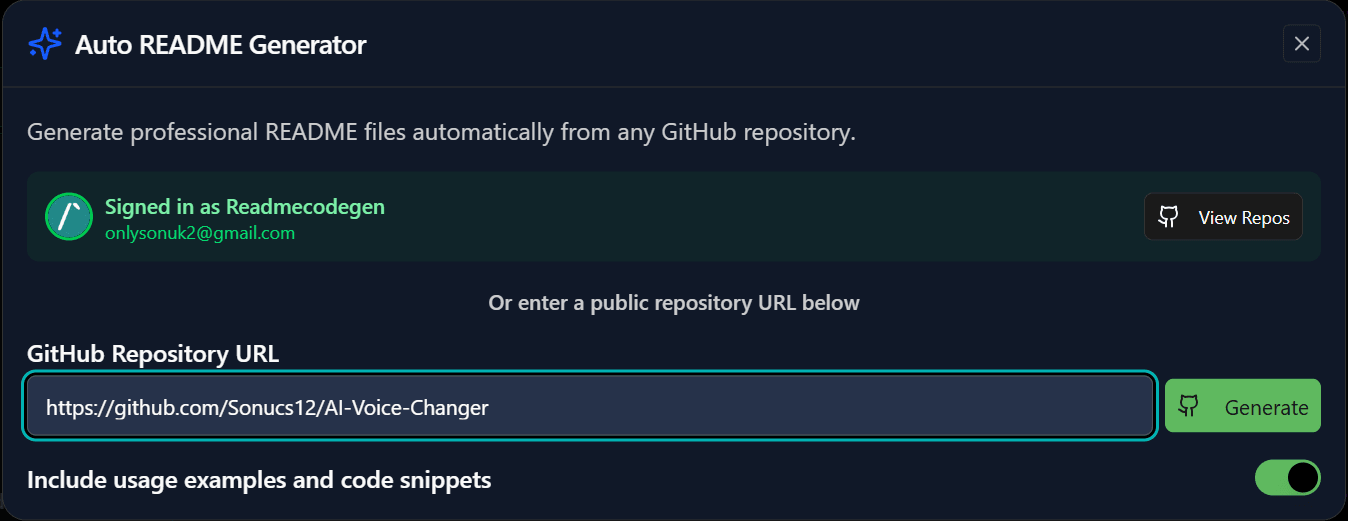
Repository README Builder
Interactive drag-and-drop builder to create comprehensive README files for your repositories.
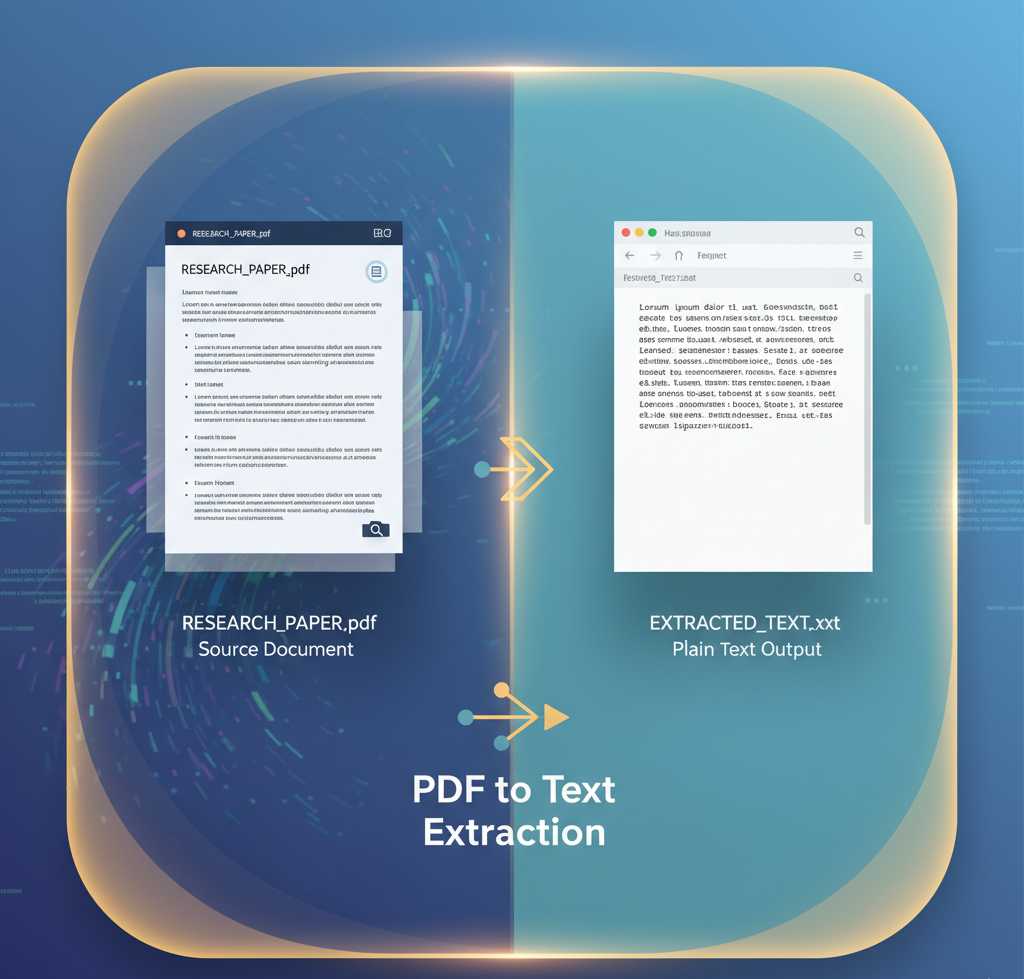
Markdown to PDF Converter
Convert your Markdown documents into beautifully styled PDF files instantly.
Changelog File Generator
Generate structured CHANGELOG.md files to keep track of your project versions and updates.
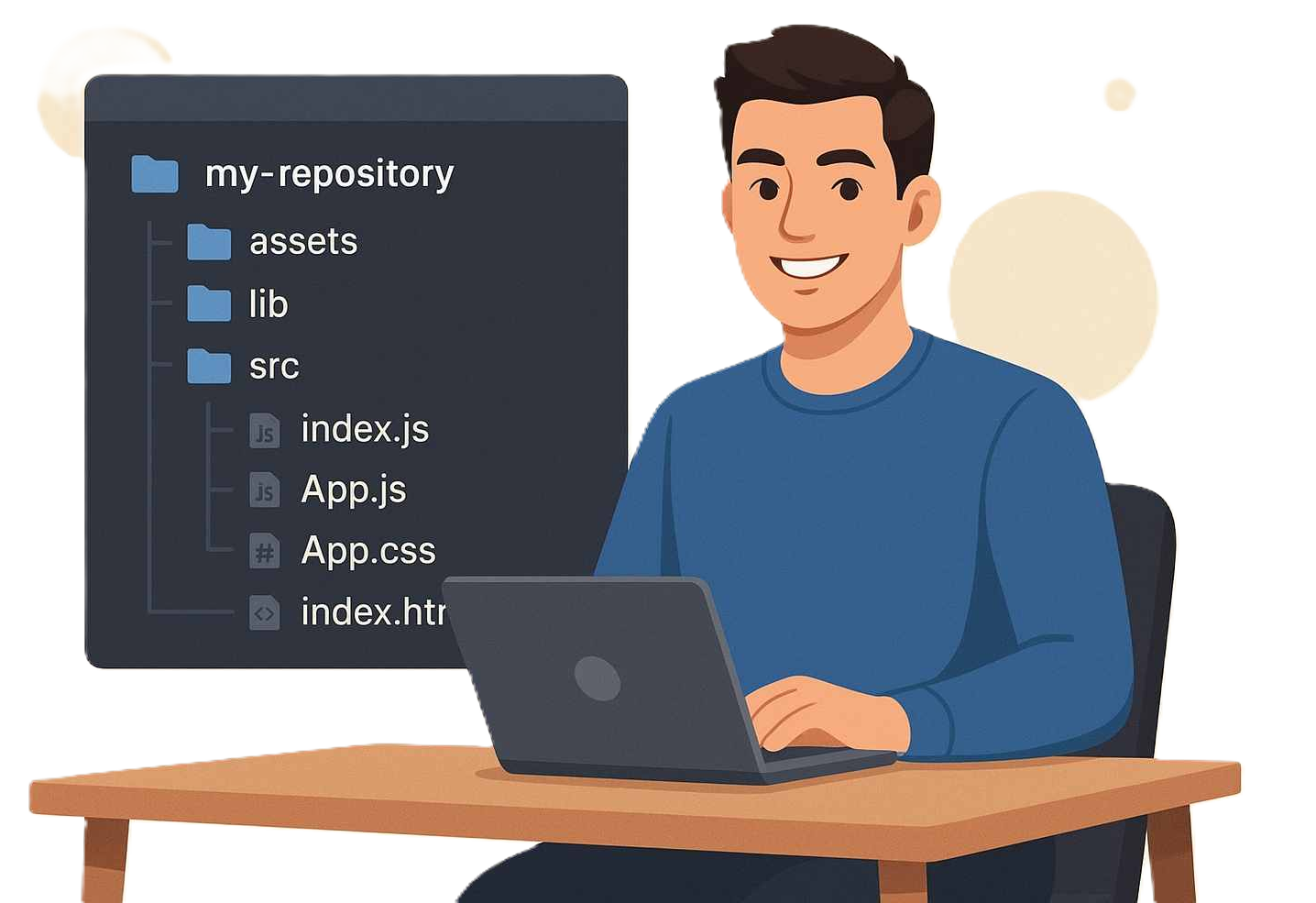
File Tree Generator
Easily generate ASCII file tree structures of your project directories for documentation.